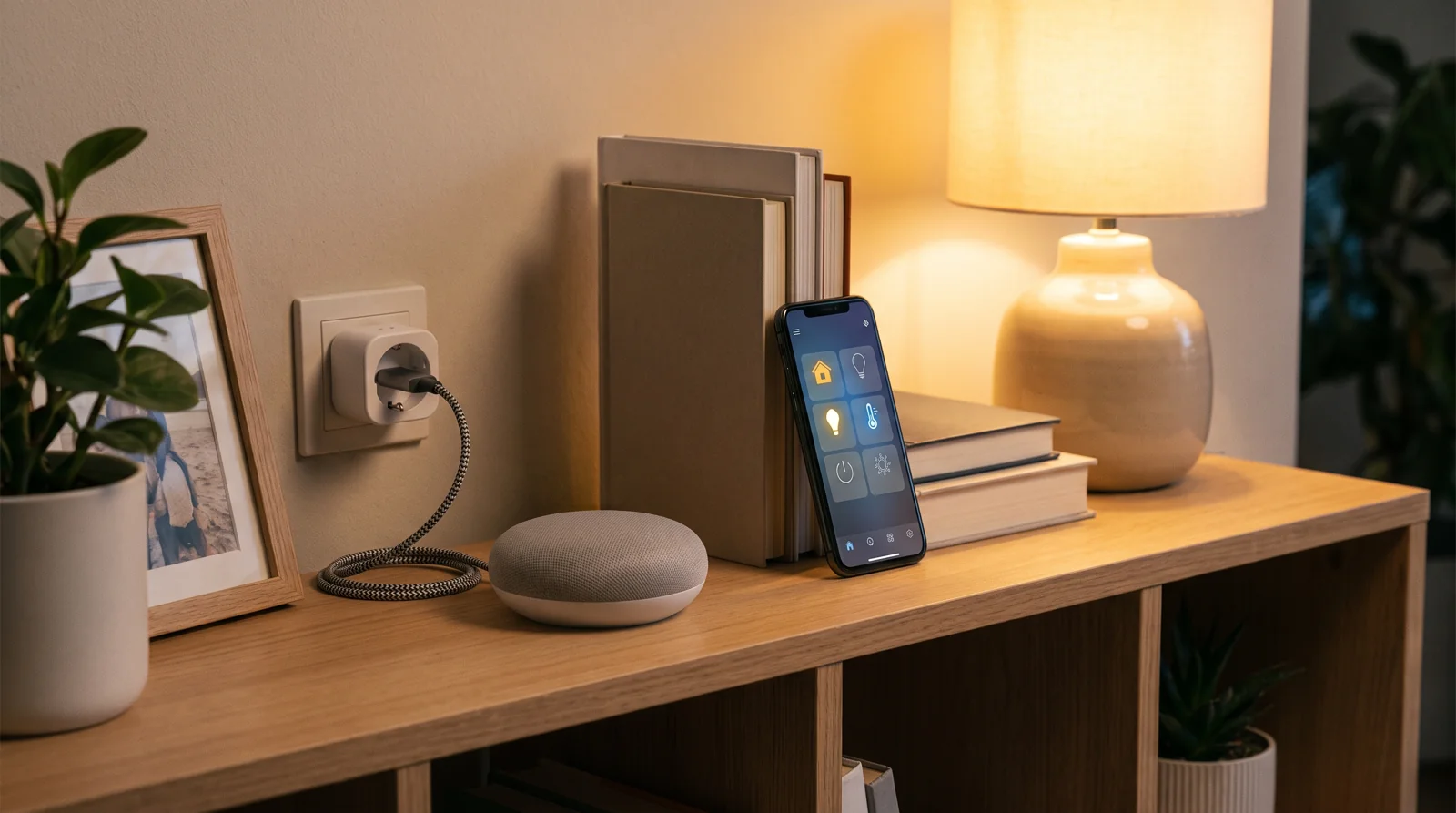
Smart home troubleshooting usually starts in the wrong place: the app. You reinstall it, you re-pair the device, you reboot the hub, and two days later the same thing happens again. The fault is almost never in the app. It is in one of three layers underneath it, and each layer has its own tell.
This page is the index for that. Read the three layers once, match your symptom, then jump to the fix guide. Every guide linked here was written from owner reports in forums and from the manufacturer’s own documentation, with sources linked inside.
Smart home troubleshooting in three layers
Layer 1 is the network. Wi-Fi devices need a stable IP, a 2.4 GHz band they can actually see, and a router that doesn’t kick them off to save power. When this layer fails you get drop-outs at the same time every day, devices that show “offline” but still respond to a physical button, and speakers that come back after a router reboot and then vanish again.
Layer 2 is the radio. Zigbee, Z-Wave, Thread and Bluetooth devices don’t use your Wi-Fi at all. They need a hub or a border router with the matching radio. When this layer is wrong, a device pairs fine with the maker’s own app but never shows up in Home Assistant, HomeKit or Google Home. Nothing you do on the Wi-Fi side will change that.
Layer 3 is the load. Smart plugs, switches and dimmers sit between mains power and whatever you plugged in. Relays wear out, LED bulbs leak current, and some loads are simply outside what the relay can switch. Here the symptom is physical: a click with no result, a lamp that glows when it should be off, a plug that is warm to the touch.
Match your symptom
Device drops off Wi-Fi on a schedule, or every time the router restarts → Google Home keeps disconnecting from wifi? Fix the IP first. The fix is a DHCP reservation, and the same fix applies to any Wi-Fi speaker or display.
Device pairs in its own app but not in your hub → Smart lock compatible with Home Assistant? Check the radio. Written for locks, but the radio check in it is the first step for any device that “isn’t compatible”.
You tap off, the app says off, and the thing stays on → Smart plug not turning off? Listen for the click first. The click test separates a dead relay from a stuck automation in under a minute.
Lights flicker or glow when they are supposed to be off → this is a load problem, not a smart home problem. It lives in the Home upgrade section: LED strip flickering when off and Will a dimmer switch work with LED bulbs.
What to check before any fix
Three checks, in order, and they cost nothing.
First, does the device respond to its own physical button or its own app while the hub says it’s offline? If yes, the device and its power are fine and you are in layer 1 or 2.
Second, is the device on 2.4 GHz? Most smart plugs, bulbs and older speakers cannot join a 5 GHz network. Mesh routers that merge both bands under one name are the most common cause of a device that “sometimes” connects. Google’s own setup documentation lists the network types that Home and Nest devices will not join, in its Nest and Home Wi-Fi requirements page.
Third, what radio does the device actually use? It is printed on the box and on the product page, and it is not always what the marketing suggests. “Works with Google” can mean Wi-Fi, Thread or a cloud-to-cloud link, and only one of those works without a hub.
Why the app is the last place to look
Apps are built to hide the three layers from you. That is good design for daily use and bad design for repair. When Google Home shows a grey device tile, it does not say whether the speaker lost its IP lease, whether the Thread border router went offline, or whether the plug’s relay welded shut. It says “offline” for all three, and offers the same two buttons: retry and remove.
So the first habit to build is to ignore the tile and go look at the thing. A speaker that still answers a voice command is not offline in any way that matters; the app lost it, not the network. A plug whose LED is on and whose relay clicks is powered and listening; the load is the problem. A lock that chirps when you press its keypad is awake; the radio between it and your hub is the problem.
The second habit is to change one thing at a time. Resetting a device, rebooting the router and reinstalling the app in one evening means you will never know which one helped, so the same symptom comes back with no plan attached. Each guide below changes exactly one variable per step and tells you what you should see after it.
When to stop troubleshooting
If a device has been reset more than twice for the same symptom, stop resetting it. Resets fix corrupted state; they do not fix a wrong radio, a hostile router setting or a tired relay. Every guide on this page ends with a “when to give up” section for exactly that reason, because a $15 smart plug is not worth an evening.
One action: write down the symptom, the radio type and whether the device’s own app still works. With those three facts, the right guide above will get you to a fix in one sitting.

Bolt & Bulb covers what goes wrong after the unboxing: devices that drop off Wi-Fi, dimmers that flicker with LED bulbs, locks that will not fit a rental door. The site draws on manufacturer documentation, platform support pages and release notes, and attributed owner reports in public forums.