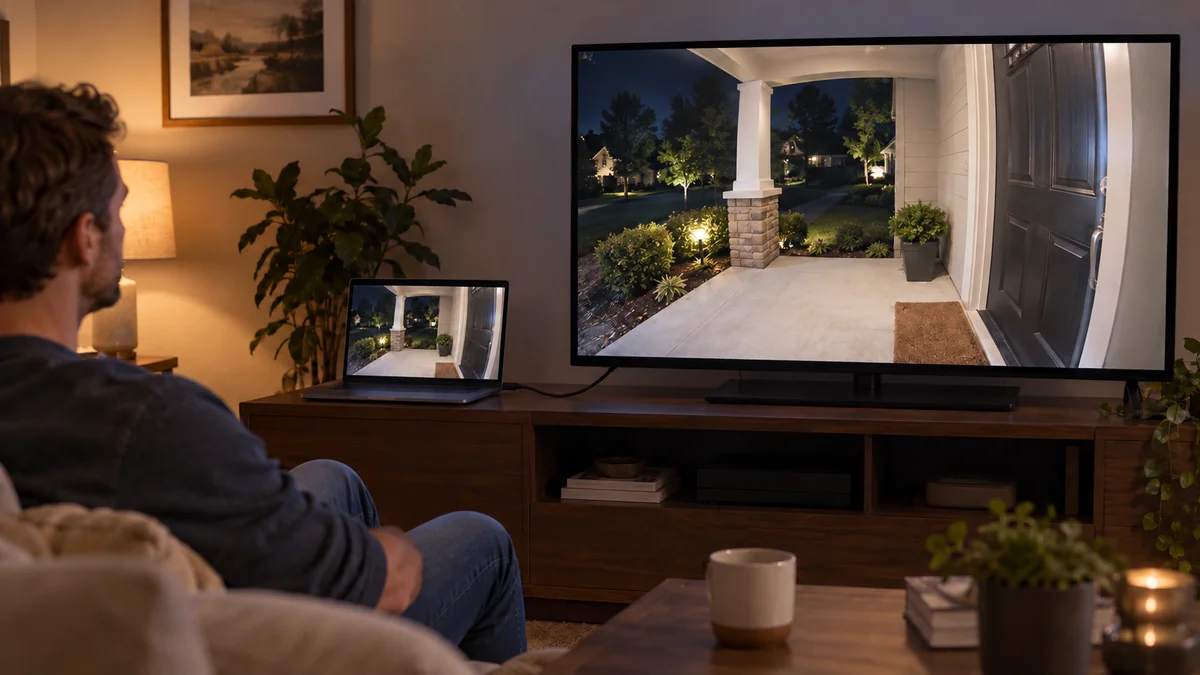
You can view Ring camera on TV without Alexa, but the result depends on the screen and the feature you need.
A compatible Samsung TV may show a supported Ring doorbell through SmartThings. For almost any TV, a computer connected by HDMI can display Ring.com, while phone mirroring is worth a free test for occasional viewing.
None of those paths automatically promises a doorbell pop-up, picture-in-picture, TV audio, or two-way talk.
If you already have a Samsung setup that stopped working, use our Ring on Samsung TV compatibility check before adding hardware. For the wider device-to-service diagnosis, start with the smart-home troubleshooting map.
Choose the TV feature before the connection
“Show my camera on the TV” can describe four different jobs.
You may want to open Live View manually, see a pop-up when someone rings, keep a small picture over a program, or speak to the visitor through the TV. A method that handles the first job may do none of the other three.
Ring’s current TV viewing instructions document Live View, a smart-home dashboard, picture-in-picture, and Two-Way Talk on compatible Amazon screens after Ring and Alexa accounts are linked. That is the benchmark people often expect.
Removing Alexa removes that documented Amazon control path.
It does not make the Ring video unavailable elsewhere, because Ring still provides Live View in its mobile app and on Ring.com. It means you must judge each alternative by its own supported features instead of expecting the Fire TV behavior.
“Use a TV to display the cameras live” was how one Ring owner described the goal in an owner discussion. The missing detail is whether “live” means a manual full-screen check or an automatic security alert.
View Ring camera on TV without Alexa in three ways
Start with the path that uses hardware you already own.
| Path | What it can reasonably provide | What to verify first |
|---|---|---|
| Samsung SmartThings on a supported TV | Native device view or doorbell notification on listed combinations | TV model year, region, Ring model, and feature support |
| Computer running Ring.com over HDMI | Manual Live View and browser features on a large screen | Supported desktop browser, cable, login, and audio route |
| Phone or tablet screen mirroring | A copy of the mobile Ring screen for a quick manual check | TV receiver, phone support, rotation, audio, and auto-lock behavior |
The Samsung path is the only one here that may behave like a native TV integration.
Samsung’s current US SmartThings TV guide says newer supported TVs and monitors can display and control compatible security cameras. It also warns that not every smart device works with SmartThings and tells owners to check the exact TV model in the mobile app.
Samsung’s regional Ring instructions are narrower.
The company’s current TV doorbell page names certain Ring doorbells and says Ring integration ended for Samsung TV model years 2018 through 2021. It centers current video and two-way features on 2022-and-newer sets, with regional and model limits.
Do not generalize that to every Ring camera or every Samsung TV.
A browser works when the TV acts only as a screen
The most predictable Alexa-free fallback is not a TV app.
Connect a laptop or small computer to the TV with HDMI, open Ring.com in a supported desktop browser, and use the television as the display. This leaves authentication and video decoding on a device Ring actually lists.
Ring says its former desktop app has moved to Ring.com.
Its current browser support page lists Live View and Two-Way Talk on Chrome, Safari, Edge, Firefox, and Opera. A smart TV’s built-in browser is not on that desktop list, so do not assume that opening Ring.com directly on the TV will work reliably.
Test the complete path before calling it a security display.
Check whether Live View opens, video remains visible for the time you need, audio comes from the TV, and the microphone you intend to use is selected. A television connected as a monitor does not automatically provide a usable microphone for Two-Way Talk.
This route is best for deliberate viewing at a desk, workshop, or kitchen display.
It is a poor substitute for an automatic doorbell overlay while someone is watching another input. If that pop-up is the requirement, keep it as a required feature rather than buying a cheap computer and hoping software will recreate it.
Screen mirroring is a test, not a compatibility promise
Phone mirroring can put the Ring mobile app on a larger screen without linking Alexa.
It copies the phone display, so the TV does not become a Ring device and cannot create its own doorbell automation. The phone stays occupied, notifications may appear on the big screen, and the feed ends when the phone locks or leaves the mirroring session.
Audio needs its own test.
Mirroring copies the picture, but where the sound and the microphone land is decided by the phone and the receiver rather than by Ring. Check both before you treat the television as an intercom.
Run the test before buying an adapter.
- Use the TV’s existing AirPlay, Google Cast, Miracast, or manufacturer mirroring receiver if it already has one.
- Open the Ring mobile app and start the exact camera’s Live View.
- Watch where video, sound, and microphone control appear for five minutes.
- Turn the phone screen off and back on once, then decide whether the interruption is acceptable.
If the television lacks a matching receiver, do not buy a casting device until its maker confirms full-screen mirroring from your exact phone. “Supports streaming” can mean sending video from selected media apps, not copying a live security app.
Do not buy a streamer until one feature is proven
A Roku, Apple TV, Google TV box, or generic Android stick is not automatically a Ring display.
Check its current app store and official support pages for the exact Ring feature you need. A third-party app may ask for camera-account credentials, add a subscription, lose support after an API change, or provide video without alerts and talk.
My recommendation is simple.
Keep your current hardware if SmartThings lists both models or if an existing computer and HDMI cable satisfy manual viewing. Use phone mirroring only when a live five-minute test proves that its audio and lock behavior are acceptable.
Do not buy an unverified streaming stick just because it puts other camera brands on a TV.
If you later mount a display or hide a permanent HDMI run, separate that physical job from camera compatibility with our home installation planning guide. A clean cable route cannot fix an unsupported app.
Do this now: write down the TV model, Ring model, and one required feature—manual view, automatic pop-up, picture-in-picture, or two-way talk. Then search that pair in SmartThings and test the free screen path before spending anything to view Ring camera on TV without Alexa.

Bolt & Bulb covers what goes wrong after the unboxing: devices that drop off Wi-Fi, dimmers that flicker with LED bulbs, locks that will not fit a rental door. The site draws on manufacturer documentation, platform support pages and release notes, and attributed owner reports in public forums.