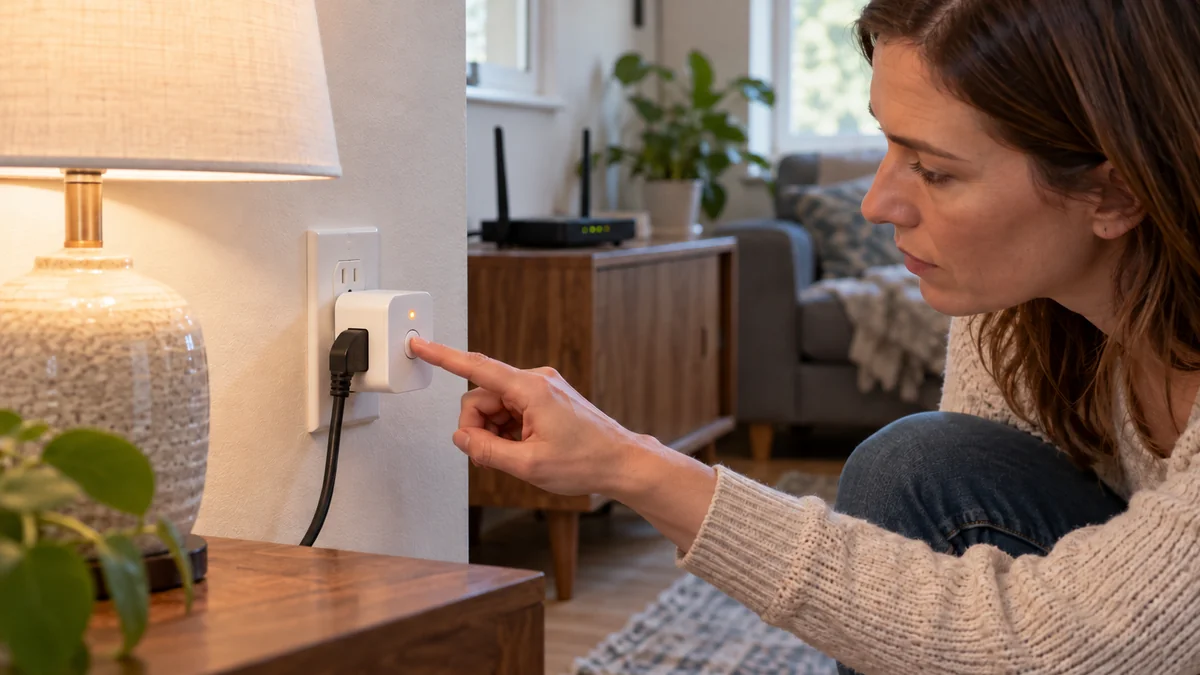
If your smart plug keeps disconnecting from WiFi, don’t reset it yet.
During the next dropout, record the status light, press the plug’s physical button once, and try its maker app while your phone is on the same home network.
Those three observations tell you whether the plug lost power, left WiFi, or stayed online while its app or cloud connection failed.
Start with the unchanged failure. A reboot may restore the plug, but it also erases the evidence that tells you what to fix.
Smart plug keeps disconnecting from WiFi? Capture one dropout
Leave the router and plug alone for two minutes after the app says “offline.”
Check whether the appliance still has power, then use the plug’s own button to switch its relay once.
If the button doesn’t light the LED or click the relay, first confirm that the wall outlet works with a simple lamp.
Stop using the plug if its case is cracked, discolored, unusually hot, buzzing, or smells burnt.
A live plug with a working button has passed the first boundary: mains power is reaching it and its local control still responds.
That does not prove WiFi is healthy, but it keeps an electrician or new outlet out of the first round of guesses.
Next, open the manufacturer’s app while the phone remains on home WiFi.
If that app controls the plug but Alexa, Google Home, Apple Home, or another service cannot, the plug has not necessarily disconnected from WiFi; the failed path may be the integration or cloud service.
TP-Link’s current offline-device guide asks support customers for the LED state and whether the device remains accessible on the local network.
That is useful because “offline” on a screen describes a failed path, not yet a failed radio.
“Wyze plugs keep going offline, with the only fix being unplugging and reconnecting them.” — a user report in the Wyze forum
The unplugging result restores service but doesn’t locate the cause.
Write down the time, LED pattern, physical-button result, maker-app result, and whether other devices failed at the same minute before you power-cycle anything.
Read the four results before changing the router
This table turns the next dropout into one decision.
Use your model’s manual for the exact LED meaning because colors differ by brand and hardware version.
| What remains working | Likely failed layer | Next test |
|---|---|---|
| No LED and no manual click | Outlet power or plug hardware | Test the outlet with a lamp |
| Manual button works but maker app does not | WiFi cloud or app path | Check local access and another location |
| Maker app works but voice assistant does not | Third-party integration | Check that service before resetting the plug |
| Several nearby devices fail together | Coverage interference or router | Compare a closer outlet and router log |
Some plugs expose two distinct network states. The Kasa EP25 quick-start guide, for example, lists separate LED indications for a WiFi disconnection and a cloud disconnection.
That distinction prevents a common bad purchase.
A mesh node cannot repair a vendor outage, and a replacement plug cannot repair a voice-assistant account link.
Also note the scope.
One failing plug points toward that device or its exact location; every 2.4 GHz device failing at once points toward the access point, interference, credentials, or an internet outage.
Move one variable, not the whole setup
When the plug is working again, move it temporarily to an open wall outlet closer to the router.
Don’t change its account, reset it, rename WiFi, and relocate it in the same test.
Leave it there long enough to cover the failure interval you recorded. If it normally drops every evening, a ten-minute test at noon proves very little.
If the plug becomes stable near the router, return a known-good plug to the original outlet if you have one. A second device failing in that location makes weak coverage or interference more likely than two bad plugs.
TP-Link recommends swapping stable and unstable devices, then checking whether the failure follows the unit or stays with the location.
If the same plug drops close to the router while another plug remains stable, update its firmware and app before replacement. Wyze’s plug troubleshooting order places app and firmware checks before the final factory reset.
A separate 2.4 GHz hotspot or router can provide one more clean comparison if your model supports that setup. TP-Link uses this test to decide whether the problem is specific to the original router.
Change WiFi settings only when the pattern points there
Most smart plugs use 2.4 GHz, but a combined network name is not proof that band steering caused the drop. Check the plug’s specifications and the router’s client list before splitting networks or disabling features that every device currently uses.
If several 2.4 GHz devices fail in the same area, first move the access point into the open and away from metal, dense furniture, or appliances.
Coverage is a placement problem before it is a shopping list.
For supported Tapo devices, TP-Link suggests checking received signal strength, using 20 MHz channel width, and testing non-overlapping 2.4 GHz channels 1, 6, or 11. Those are maker-specific troubleshooting directions, not settings to copy blindly across every router.
An IP conflict is another possible branch, but don’t assign random addresses. If the router log shows the same address assigned twice or the plug disappears after lease changes, use the router’s documented DHCP reservation feature or ask its support team.
Don’t use the smart plug to power the router that the same plug needs for control. Once WiFi is down, the command that should restore the router may have no path back to the outlet.
Buy a plug or coverage only after the comparison
Replace the plug when its power and outlet are sound, current firmware is installed, the same unit fails near the router or on a clean supported network, and a known-good unit stays online in both locations.
Improve coverage when multiple devices fail in one area but become stable near the existing access point. Before buying mesh hardware, test where a new node could sit; a node placed inside the same dead zone has a poor link to repeat.
Keep the plug when its maker app and local button work during the reported outage. Fix the named integration, account link, or service status instead.
Factory reset comes last because it removes the saved network and may hide an intermittent fault for a while. Record the model, hardware version, firmware version, router model, LED state, failure time, and recovery action before contacting support.
Use the smart-home troubleshooting map if several device types are failing. If better coverage requires a shelf or wall-mounted access point, plan the physical location with the home-upgrade installation guide before buying mounting hardware.
Do this now: create a five-column note labeled time, LED, manual button, maker app, and other devices. Fill it in during the next failure, then change only the plug’s location for the first controlled test.

Bolt & Bulb covers what goes wrong after the unboxing: devices that drop off Wi-Fi, dimmers that flicker with LED bulbs, locks that will not fit a rental door. The site draws on manufacturer documentation, platform support pages and release notes, and attributed owner reports in public forums.