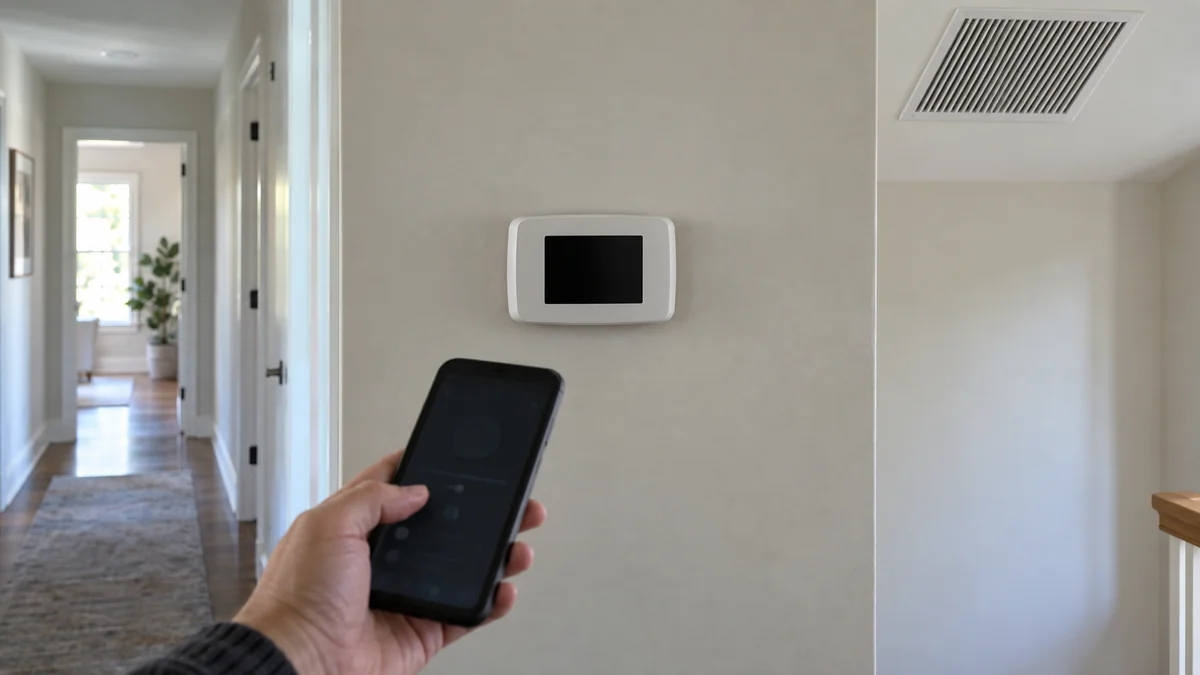
If your smart thermostat screen blank problem has just appeared, don’t factory-reset or order a replacement yet. Try to wake the display, check the thermostat in its app, and note whether the heating, cooling, or fan still responds.
Those three results separate a sleeping screen from a lost-power problem and show whether the next call belongs to thermostat support or an HVAC technician.
Start with what still works. A blank display can be normal sleep behavior on one model and a power warning on another, so the model number and app status matter more than the color of the screen.
Smart thermostat screen blank? Prove whether it is asleep
Stand in front of the thermostat, tap its normal wake area once, and wait for the period stated in its manual. Do not hold buttons or remove it from the wall until you know what that action does on your exact model.
Some smart thermostats deliberately turn off the display. The Resideo Round Smart Thermostat guide says its screen sleeps when nobody is nearby, while the thermostat remains controllable in the Honeywell Home app.
Its motion detector should wake the display when someone approaches.
That means app control plus normal HVAC operation points toward a display setting, wake sensor, or screen fault rather than a total power loss. Open the app without changing the setpoint first.
Record whether the device is online, when it last checked in, the room temperature it reports, and any low-power or equipment alert.
An app tile alone is not proof of a live connection because it may show an old value.
Now make one small temperature change in the app and watch for an acknowledgement, but cancel it if your home is already too hot or cold.
If the app reaches the thermostat and the HVAC responds, keep the thermostat installed while you check the manual’s display and proximity settings.
If the app says offline and the HVAC does nothing, treat the blank screen as a power problem until proven otherwise.
Use the app and HVAC as two separate witnesses
A smart thermostat can lose WiFi while its screen and local control still work. It can also lose HVAC power and then fall off WiFi as its backup battery drains.
Google’s Nest no-power guide separates those failures.
The guide says a thermostat may disconnect from WiFi even when its battery level looks good if the HVAC system is not delivering power. It lists HVAC power, wiring, and system faults as separate possible causes.
The useful question is therefore not simply “Is it offline?” Ask what else stopped at the same time.
- Note whether the display is fully dark, dim, showing a light, or briefly restarting.
- Record the app’s live status and any exact help code without dismissing it.
- Listen for normal equipment operation and check whether air moves at a nearby vent.
- Write down what happened immediately before the screen changed, such as filter service, a power cut, or a cooling cycle.
Do not bridge thermostat terminals, probe live wiring, open an HVAC control panel, or bypass a drain safety switch.
A homeowner in an HVAC advice thread reported, “I have flipped breakers, changed the air filter,” before an update identified a kinked condensate line and float-switch shutdown. That report is not a diagnosis for your system, but it shows why replacing the thermostat first can miss the upstream fault.
A repeatable pattern is more useful than a guess.
If the screen goes dark only when cooling runs, after water appears near the equipment, or whenever the same breaker trips, leave the system off and call an HVAC technician.
If you smell gas, hear a carbon monoxide alarm, see smoke, or notice scorched wiring, leave the area and contact the appropriate emergency service instead of continuing this test.
Restore the simple power path only once
Find the model number in the app, on the removable cover only if the manual says that cover is user-removable, or in your installation records.
Use that model’s manual for the next step because battery type, wake behavior, lights, and restart commands differ.
If the thermostat uses replaceable batteries, install a fresh matched set in the documented orientation. Clean-looking batteries are not evidence that they still hold enough charge.
If it is hardwired, check only the controls that are meant for ordinary household use.
Confirm that the HVAC service switch is on, the equipment door is fully closed, and the labeled breaker is on. If a breaker is tripped, reset it once; if it trips again, stop and book service.
The Resideo T10 and T10+ guide uses that same outside-in order for a blank display: breaker, system power switch, furnace door, then the C-wire connection. The wire check marks the point where this homeowner test ends.
Do not pull or move a C wire to copy an online fix.
If the thermostat has a visible status light, time it before pressing anything. Google’s Nest startup guide says a blinking green light normally lasts a minute or two during an update, startup, or restart.
An unresponsive thermostat that keeps blinking for more than 15 minutes may have frozen. That timing keeps a normal update from becoming an unnecessary reset.
Use one model-approved restart only after recording the app status, alert code, and light pattern. A factory reset is different: it can erase schedules, account links, equipment configuration, and the evidence support needs.
If power returns, watch one complete heating or cooling call.
Confirm that the display remains on, the app updates, the equipment starts and stops normally, and no breaker or alert returns.
Replace the thermostat only after its power is verified
A replacement thermostat is reasonable when a technician or the maker confirms stable power at the base, the exact model’s battery or seating checks pass, the app cannot reach it, and the display still will not wake.
It is the wrong first purchase when the furnace, air handler, breaker, service switch, or condensate safety has also stopped delivering power.
Call the thermostat maker when the HVAC still operates normally, the app remains current, and only the display fails. Save the serial number, purchase date, light pattern, firmware version if visible in the app, and a short video of the failed wake attempt.
Call an HVAC technician when the display and equipment stop together, a breaker will not stay on, water is near the unit, the screen repeatedly dies during a heating or cooling call, or a no-power code returns after one safe reset.
Protect the house while you wait.
Use safe temporary heating or cooling recommended by local authorities, move temperature-sensitive people or pets if indoor conditions become unsafe, and do not use an oven, grill, or unvented outdoor appliance to heat a room.
For other device failures, the smart-home troubleshooting map helps separate power, network, app, and hardware faults. If a replacement later needs a new wall plate or mounting position, use the home-upgrade installation guide before drilling.
Do this now: write three lines for screen or light, app status, and HVAC response before touching the thermostat.
Then follow only the matching external power check in the exact model manual, and stop if the same failure returns.

Bolt & Bulb covers what goes wrong after the unboxing: devices that drop off Wi-Fi, dimmers that flicker with LED bulbs, locks that will not fit a rental door. The site draws on manufacturer documentation, platform support pages and release notes, and attributed owner reports in public forums.