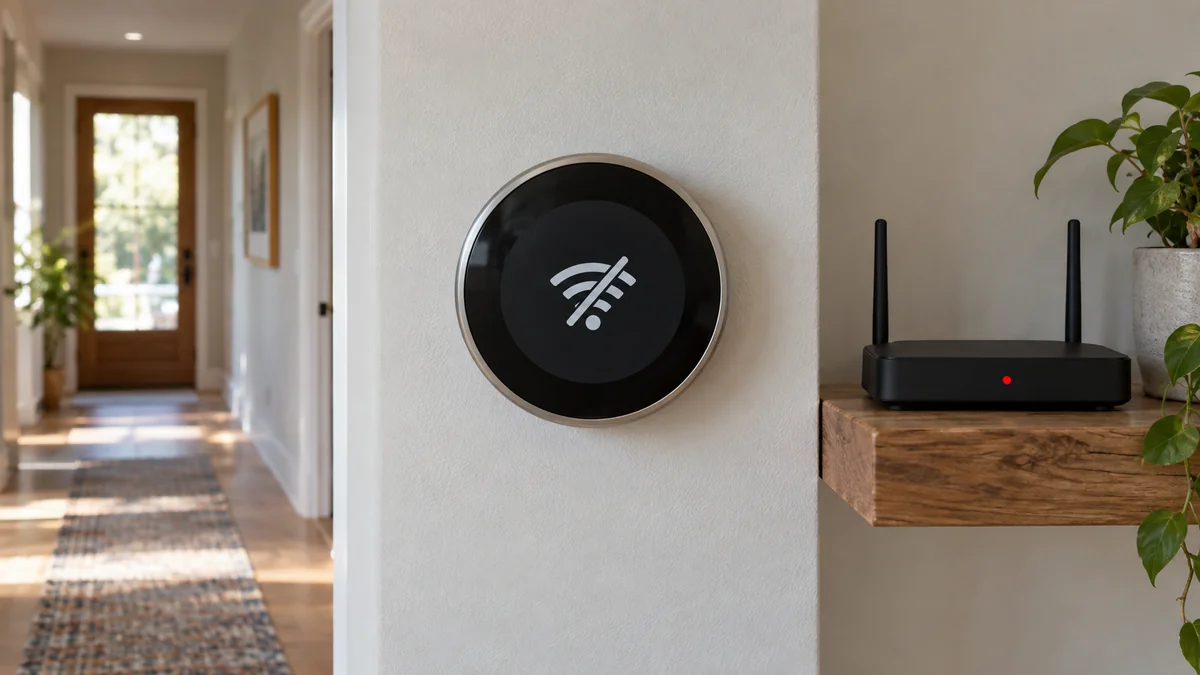
If your smart thermostat keeps going offline, change the setpoint at the wall before you reboot, reset, or buy anything.
If the HVAC system responds locally, the immediate fault is probably in the app, cloud, or network path; a blank, rebooting, or unresponsive thermostat points toward power or equipment service instead.
That first split tells you whether a Wi-Fi extender could help or would merely hide the real problem.
Smart thermostat keeps going offline four-signal test
Start while the fault is happening. Don’t restart five devices at once, because a successful reconnection won’t show which link failed.
Use the wall control to move the setpoint enough to request heating or cooling. Watch the thermostat’s normal equipment indicator and listen for the system response, but don’t remove the thermostat or touch its wiring. If local control works, leave the temperature at a safe setting while you test remote access.
Next, check another Wi-Fi device with cellular data turned off. Google tells Nest owners to use this test because a phone quietly switching to cellular can make a home internet outage look like a thermostat fault. Then check whether one thermostat, every thermostat, or every connected product is marked offline.
| What you observe | Most useful next move | Don’t buy yet |
|---|---|---|
| Wall control works and every smart device is offline | Check home internet, router, and vendor service status | A thermostat |
| Wall control works and only this thermostat is offline | Check its power, signal, and model-specific Wi-Fi requirements | An extender until signal is proven weak |
| Display is blank, reboots, or won’t control the system | Stop network testing and arrange HVAC or manufacturer support | Network hardware |
| It works on a supported alternate network | Investigate the home router path and compatibility | A replacement thermostat |
The table isn’t a diagnosis. It is a spending filter that keeps an app symptom from turning into the wrong hardware order.
Local control separates comfort from convenience
An offline label describes a communication failure, not necessarily a heating or cooling failure. Google’s Nest support guide says an offline product can’t reconnect to home Wi-Fi, while Honeywell Home documents a separate case in which the thermostat is online but appears offline or ignores app changes because the cloud connection path is poor.
That distinction matters most when you’re away from the property. A remote app view cannot prove that the room is safe, and a wall test requires someone on site. If nobody can verify local control during freezing or dangerous heat, arrange an in-person check instead of treating the app as the only sensor.
“Moved into a house that has a Nest thermostat that always goes offline.” — a Nest owner describing the recurring symptom
The report shows why “offline” alone is too broad. The thermostat model, what still works at the wall, and whether other devices remain online turn that complaint into a useful case.
For a wider device-by-device check, the smart-home troubleshooting map separates power, local network, radio, controller, and cloud handoffs.
Test Wi-Fi without erasing the evidence
Once local control is confirmed, work outward from the thermostat. Use its own settings screen or manufacturer app to record the model, firmware, power warning, Wi-Fi band, signal reading, and IP address if those fields exist. Don’t borrow menu names from another model.
- Check the manufacturer’s service-status page and update the phone app. A vendor outage or stale app can imitate a device failure.
- Confirm that another device reaches the internet over the same home Wi-Fi. If everything is down, fix that shared path first.
- Read the thermostat’s power and signal information. Google notes that a low Nest battery can disable Wi-Fi to conserve power.
- Compare the model’s network requirements with the router. Honeywell Home says many of its models require a separately named 2.4 GHz network, while listed T9 and T10 models also support 5 GHz.
Model specificity protects you from generic router advice.
Splitting bands, changing security, or disabling mesh features can disrupt other devices, and some thermostats don’t require those changes at all.
Do one reversible change at a time and record the result. A router restart is reasonable when several products are offline, but a thermostat factory reset should come late because it can erase schedules and network evidence without fixing weak power or a cloud outage.
The hotspot result decides what deserves money
A temporary hotspot can separate the thermostat from the home router, but only if the manufacturer supports that test and you follow the exact model instructions. Honeywell Home describes an alternate network or hotspot as an extreme troubleshooting step.
If the thermostat stays online on the alternate network, replacement is hard to justify. The evidence points back to home Wi-Fi coverage, router compatibility, DHCP, or security settings. Ask the router maker or internet provider to interpret the recorded readings before adding equipment.
Buy a mesh node or extender only when the thermostat’s documented signal reading is weak at its fixed wall location and a closer supported access point makes the connection stable. Placement matters more than the word “extender.”
If a supported hotspot fails while power is healthy and the vendor service is up, contact thermostat support with the model, firmware, error, and test results. That is the point where replacement becomes a defensible option.
Stop at power faults and unstable HVAC control
Network troubleshooting ends when the display goes blank, the thermostat reboots, the equipment short-cycles, or local setpoint changes don’t produce the expected system response. Don’t open the wall plate to hunt for power while following a Wi-Fi article.
Record the full model number, the exact screen message, when the dropout occurs, whether the display loses power, and whether heating or cooling continues. An HVAC technician or the manufacturer’s support team can use those facts; “it keeps going offline” gives them very little.
If mounting new network hardware becomes part of the solution, use the home installation guide to identify the surface and cable path before drilling. A signal test should stay reversible until the location proves itself.
Do the wall setpoint test now. It tells you whether to protect comfort first or continue with the network.

Bolt & Bulb covers what goes wrong after the unboxing: devices that drop off Wi-Fi, dimmers that flicker with LED bulbs, locks that will not fit a rental door. The site draws on manufacturer documentation, platform support pages and release notes, and attributed owner reports in public forums.