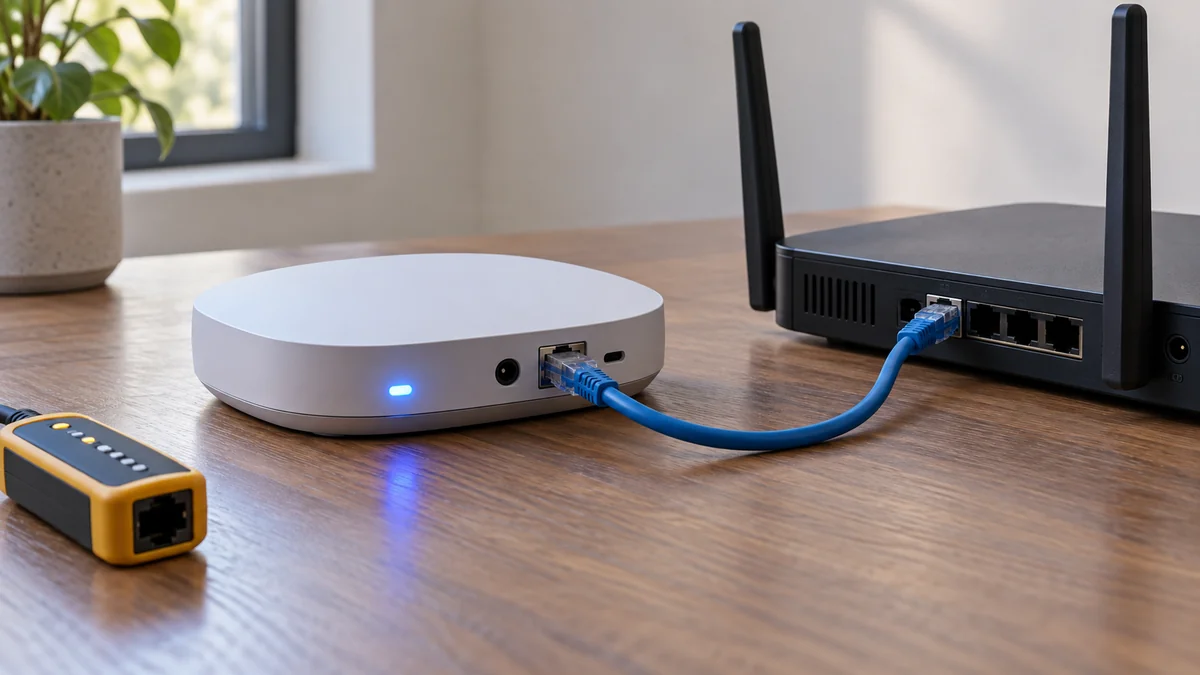
Smartthings hub blue light blinking usually means an older Samsung SmartThings Hub or first-generation Aeotec Smart Home Hub has lost its Ethernet or WiFi link.
Do not factory-reset it. Confirm the model, check the physical network path, and try one reversible reboot or connection swap first.
If the label says Aeotec Smart Home Hub 2, stop using the older color chart: its official guide assigns different meanings to its LEDs.
The short answer: photograph the label and light, check SmartThings service status, then test either a known-good Ethernet cable or the model’s documented WiFi path. Resetting is the wrong first move because it can remove the setup you are trying to rescue.
The site’s smart-home troubleshooting map follows the same rule: locate the failed handoff before deleting a working configuration.
Identify the hardware before you read the color
“SmartThings hub” now describes several boxes, including Samsung Hub v2, Samsung Hub v3, the first Aeotec Smart Home Hub, and newer hub-enabled products. Their lights are not a universal language.
Read the model name from the underside label and note whether the light blinks continuously, flashes only during startup, or becomes solid. Also record whether the app calls the hub offline and whether every hub-connected device failed at the same time.
For the first-generation Aeotec Smart Home Hub, the manufacturer’s LED chart, checked October 20, 2026, defines blinking blue as no Ethernet or WiFi connection. It defines solid blue differently: the hub has a network link but cannot reach the internet or SmartThings server.
That blink-versus-solid distinction changes the next test.
The Smart Home Hub 2 guide, checked the same day, calls solid blue normal operation and lists blinking green for startup. Its short indicator list does not define blinking blue, so use that model’s current support path rather than importing a first-generation diagnosis.
Smartthings hub blue light blinking isolates the local link
On the older Samsung and first-generation Aeotec path, a blinking blue light puts the first question between the hub and the local network. It does not prove that the hub is dead, and it says nothing yet about Zigbee or Z-Wave range.
A solid blue light belongs to a later branch because the local link may already exist. The first-generation Aeotec guide sends that case to the SmartThings status page and then to an internet or server check.
Keep the observation literal.
A blue flash seen for a few seconds during boot is not the same evidence as a light that continues for ten minutes after the router and modem are online. The exact model, cadence, and startup phase remain unverified until you compare them with the matching manual.
A community report shows why preserving that detail matters. One owner described a v3 hub that was “stuck in blinking blue” without LAN but changed to solid blue when Ethernet was connected.
“Currently it is stuck in blinking blue (when unplugged from LAN), or in solid blue when the LAN is connected.”
That report is not a diagnosis for every hub. It shows that a single cable change can produce more useful evidence than repeated resets.
Run one network path and keep the result
Use this sequence only after identifying a Samsung v2 or v3, or the first Aeotec Smart Home Hub. Do not press and hold Reset while working through it.
- Check the wider outage. Confirm that another wired or wireless device can reach the internet, then check the SmartThings status page from mobile data.
- Read the current path. For Ethernet, seat both plugs and look for link activity at the router. For WiFi, confirm the router and saved network still exist.
- Change one component. Try a known-good cable and another router LAN port, or follow the exact hub guide to test Ethernet instead of WiFi. Do not change both paths at once.
- Reboot without erasing. Samsung’s current guidance for Hub v2 and v3 says to disconnect power and Ethernet, remove v2 backup batteries if fitted, wait two to three minutes, and reconnect them.
- Record the settled state. Give the hub time to start, then write down the LED color, blink pattern, app status, and whether hub devices returned.
The Samsung reboot guide, updated May 8, 2024 and checked October 20, 2026, says an online v2 or v3 ends at solid green. It also separates reboot from factory reset: a reboot preserves settings, while a factory reset removes data and device connections.
That is the reason for the order.
If Ethernet works but WiFi does not, the hub has already argued against immediate replacement. If neither path obtains a local link while the same cables and router ports work with another device, save that result for SmartThings or Aeotec support.
Do not turn a network symptom into a radio repair
Deleting one motion sensor, repairing Z-Wave, or moving a Zigbee repeater cannot restore a hub that has no LAN or WiFi connection. Those actions begin after the hub itself is online and only some devices remain unavailable.
Likewise, do not buy a stronger router because one blue light appeared. The controlled path test must show that the failure follows WiFi coverage or the router rather than the hub, cable, service, or setup state.
If the hub returns but smart bulbs remain unreachable, check whether their wall switch has cut power before rebuilding the network.
The smart bulb and wall switch guide separates that home-upgrade problem from a hub outage.
Contact support with the model number, LED video, connection type, router model, outage time, and the result of the cable or path swap. That packet gives support a failed handoff to investigate instead of a list of simultaneous changes.
What a replacement hub can and cannot carry over
Replacement becomes reasonable when the correct model guide and support process have ruled out service, power, cable, router port, and both supported network paths. Even then, leave the old hub in its SmartThings location until you check migration options.
SmartThings’ current Hub Replace guide, checked October 20, 2026, says supported hubs can transfer devices and local Routines to a new hub. The option appears under the existing hub after the replacement hub is added to the same location, and devices may need up to 20 minutes to return afterward.
Support varies by hub.
If Replace Hub is absent, the official page says that hub does not currently support the feature. Do not delete the old hub to make the button appear; ask SmartThings support what the exact source and destination models can preserve.
Take the label photo and run one alternate network path now. That result decides whether the next dollar belongs to a cable, router fix, support case, or replacement hub.

Bolt & Bulb covers what goes wrong after the unboxing: devices that drop off Wi-Fi, dimmers that flicker with LED bulbs, locks that will not fit a rental door. The site draws on manufacturer documentation, platform support pages and release notes, and attributed owner reports in public forums.