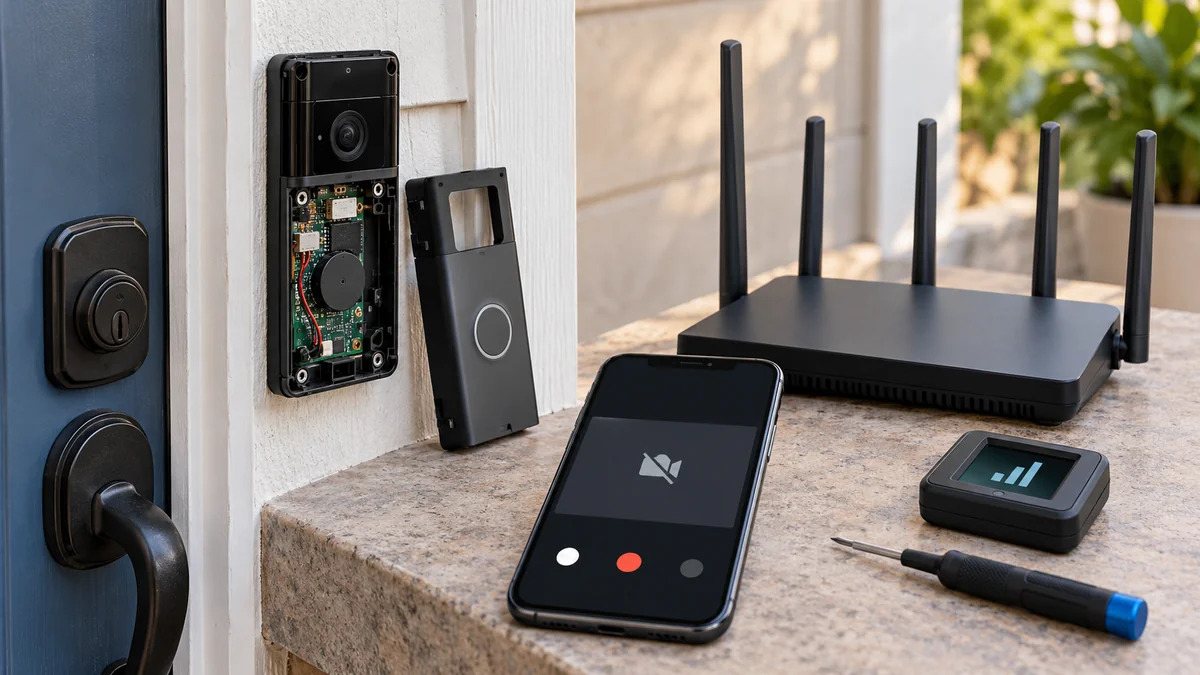
The Ring tile spins, times out, or returns to the dashboard while the doorbell still looks powered.
If you searched ring doorbell live view not working wifi, don’t buy an extender or replace the doorbell yet.
Compare the phone path, Ring’s service, the doorbell’s network link, and the device itself in that order.
One controlled swap at a time will show which branch deserves the next fix.
The short answer: check Ring’s status, try the same phone on WiFi and cellular data, try another viewer, then read Device Health. A purchase makes sense only when the failure follows weak signal or the doorbell after the other branches pass.
The site’s smart-home troubleshooting map uses the same approach: locate the failed handoff before deleting a working setup.
One Live View stream has two network ends
Live View has to travel from the doorbell through its home internet connection to Ring and then back to your phone or browser. A working phone speed test checks only part of that route.
Ring’s Live View guide, checked October 20, says ordinary Live View works in the Ring app and on Ring.com for up to 10 minutes. It does not require a Ring Home subscription.
That distinction matters.
Buying a subscription won’t repair a failed basic stream. Extended, continuous, and multi-camera viewing have plan rules, but a standard live session should be diagnosed first.
Before changing settings, open the Ring status page. It showed Video On Demand, Doorbells, Ring Mobile Apps, and Device Health as operational when checked on October 20, 2026, but the current status at the time of your failure is the useful fact.
If several Ring devices fail on several phones while the status page reports an incident, wait and retest after the incident closes. A factory reset cannot fix a service outage.
Ring doorbell live view not working wifi has four branches
Keep the test small. Record the result after each comparison instead of changing the router, app, and doorbell at once.
| Comparison | What the result points toward | What not to buy yet |
|---|---|---|
| Same phone on home WiFi and cellular | A failure on only one connection follows that phone network path | Doorbell or extender |
| Same Live View on another phone or Ring.com | One viewer fails while another works points toward the first app, phone, VPN, or browser | New doorbell |
| Ring status versus one local device | A broad incident and a single-doorbell failure need different next moves | Any hardware during an incident |
| Device Health online state, signal, and power | The failure follows the doorbell network or device branch | Phone or mobile-plan upgrade |
A Ring community member described one clean split as, “It simply won’t work on cellular data.” The Ring moderator’s reply pointed to mobile data strength or carrier limits because the same Live View worked on WiFi.
That report does not diagnose every failed session. It shows why swapping one connection is more informative than resetting the doorbell.
Test the viewer before changing the doorbell network
- Use the same phone on two connections. Try home WiFi, then cellular data where the signal is usable. If only one route fails, investigate that route before touching the mounted device.
- Turn off a VPN for one test. Ring’s audio and video guide names a VPN, an outdated app, and the phone itself as viewer-side checks. Turn the VPN back on after the comparison.
- Try a second supported viewer. Use another phone or tablet with the Ring app, or sign in to Ring.com. If the second viewer opens Live View, the doorbell has already proved that it can deliver a stream.
- Check the Live View setting and encryption path. Ring says Live View must be enabled under Video Settings. If end-to-end encryption is enabled, use the phone or tablet that was set up for that encrypted path.
Restarting the phone and updating the Ring app are reasonable after the comparison identifies the viewer branch. Reinstalling everything first destroys the useful contrast.
If every viewer fails, open Device Health for the exact doorbell. Ring’s Device Health guide says this screen can show product name, online status, network name, signal strength, power details, and the last health check, although fields vary by model.
Read the timestamp too.
An old last health check may describe the connection before the failure. A fresh online status with a strong signal sends the diagnosis away from simple range and toward settings, upload capacity, service, or the device.
Let the failed comparison earn the purchase
Ring measures doorbell WiFi with RSSI. Its current WiFi recommendations label -70 to -80 as poor and -80 or worse as very poor, where delays, interruptions, or intermittent service are expected.
A repeatably poor reading at the door can justify moving the router or adding a better-placed access point, mesh node, or compatible Ring network accessory. If that hardware will be wall-mounted, fix the mounting surface rather than reusing a loose fastener; the spinning drywall anchor check covers that separate installation problem.
Signal is not speed.
Ring lists at least 2 Mbps upload for a 1080p device and 10 Mbps for a 2K device, with requirements tied to resolution and the number of active devices. Test upload near the doorbell’s access point, then match the result to the exact model instead of applying one speed target to every Ring product.
If Device Health says offline, use Ring’s reconnect path and check battery or model-specific power information. Ring notes that all of its devices support 2.4 GHz while only some support 5 GHz, so the exact product name must decide which band is available.
Do not reset yet.
Keep the factory reset for after the power, network, and reconnect checks. It is a reversible software step of last resort, not proof that the doorbell needs replacement.
Contact Ring support with the model name, failure time, current Device Health report, both connection results, and the second-viewer result when service is operational and every viewer still fails. That evidence gives support a hardware branch to examine without pretending a strong signal proves the camera is healthy.
Open Device Health now and write down those four results before you spend money. That is the fastest useful answer to ring doorbell live view not working wifi.

Bolt & Bulb covers what goes wrong after the unboxing: devices that drop off Wi-Fi, dimmers that flicker with LED bulbs, locks that will not fit a rental door. The site draws on manufacturer documentation, platform support pages and release notes, and attributed owner reports in public forums.