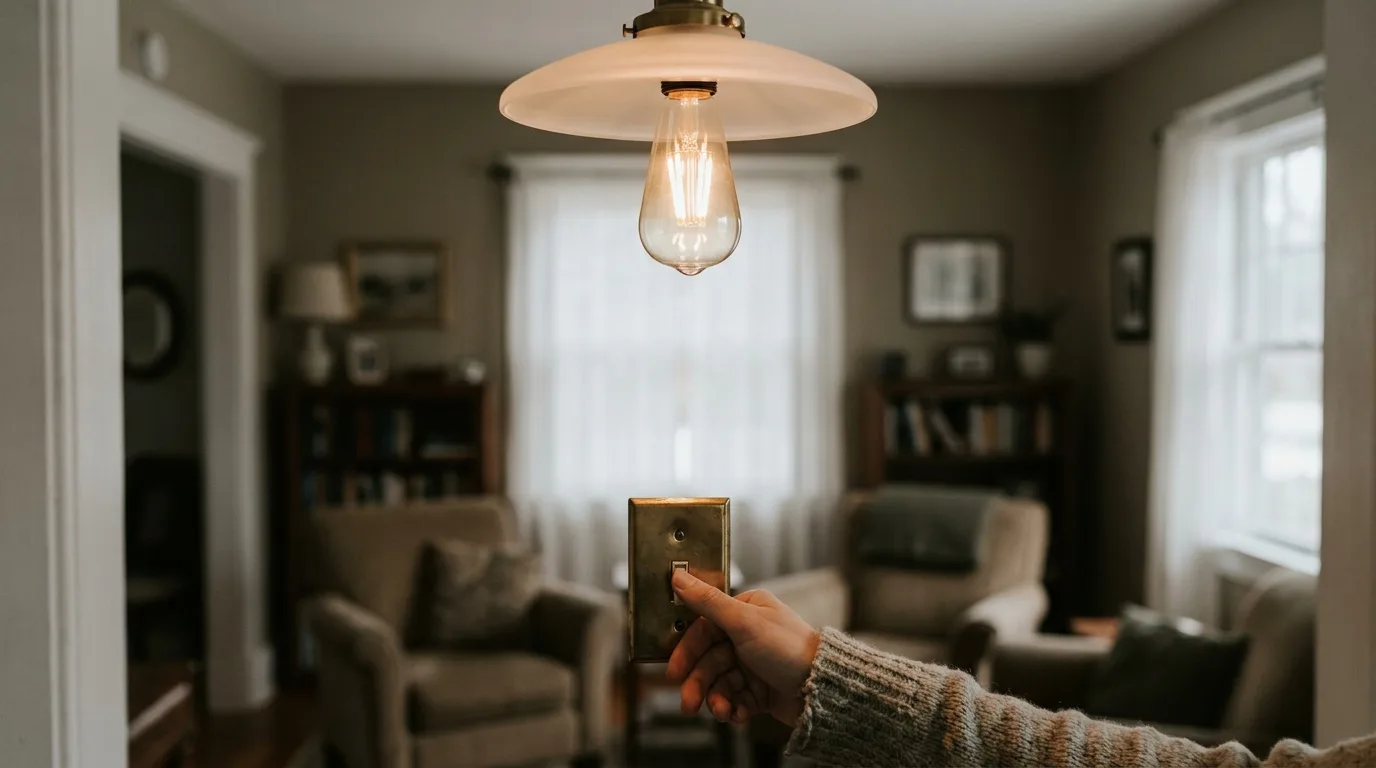
A smart bulb not working with existing wall switch is almost never a broken bulb. The switch cut its power, and a bulb with no power can’t hear the app. Turn the switch back on, give it a minute, and it should come back.
If it doesn’t come back — or it returns as plain white at full brightness — the flipping did something worse than turn it off. On several popular bulbs, that wall switch is the documented factory-reset control.
So the repair has two halves. Get the power back, then stop the switch from being flipped again.
Smart bulb not working with existing wall switch? The power is cut
A smart bulb is a radio and a small computer sharing a socket with an LED. The radio listens all the time, which is how an app or a voice assistant reaches it a second after you ask. Cut the mains and all of that stops. There’s nothing left to send a command to.
That isn’t a fault. It’s the trade you made the moment you put the intelligence in the bulb instead of in the switch.
On the Hubitat forum, in a long thread about exactly this, one member put the trade plainly:
“If you have smart light bulbs, they need to be powered on at all times. Then they can be controlled by a smart app, voice assistant or your Hubitat. By using smart light bulbs, you give up the option of controlling the bulb by a switch or dimmer.”
Read the last sentence again. The switch doesn’t become less convenient. It stops being a light control at all, and every flip from here is an interruption rather than an instruction.
Your wall switch is the reset button
Here’s the part that turns a five-second annoyance into a lost evening. Ask TP-Link how to reset a Kasa bulb and the answer isn’t a pinhole or a button in the app. Their own support page tells you to use the wall switch — and the number of flips that matters depends on how old the bulb is.
| Kasa bulb generation | Flips for a soft reset | Flips for a factory reset |
|---|---|---|
| Older (LB130, KL120, KL110 1.0) | 3 | 5 |
| Newer (KL50, KL60, KL125, KL135 1.0) | 5 | 10 |
Five flips is a soft reset on one generation and a full wipe on the other. TP-Link even sets the tempo: “do not switch the bulb on and off too quickly, the time duration is around 1s.” That is not a rare accident. It’s the exact rhythm of a person standing at the wall wondering why the light won’t respond.
A soft reset keeps your settings. A factory reset erases them and drops the bulb off your network, which on your phone looks identical to a dead bulb.
Not every brand works this way. Enough do that “just flip it a few times and see” is the worst advice in the room, and it’s the first thing most people try.
Fix it in this order
- Switch on, hands off, sixty seconds. Most bulbs rejoin the network by themselves. Standing there flipping is what causes the next problem.
- Check the app before you blame the bulb. If every device is offline, this was never about the switch, and the network is where to start.
- Back on, but white and at full brightness? Nothing broke. That’s the bulb’s default for restored power. Philips calls the setting Power-on behavior, and its bridge release notes track years of fixes to it — set it to your last state and a power cut stops looking like a failure.
- Gone from the app entirely, with the switch on? It was reset. Add it again from scratch, then rename it before you forget which one it was.
- Now fix the cause, or you’ll be back here next week.
Three ways to take the switch out of play
Pick by who flips the switch, not by budget.
- A light switch guard. A plastic cover that screws onto the plate you already have and holds the toggle in the on position. Ugly, five dollars, works this afternoon. This is the right answer for rentals and for rooms where the only person flipping it is a guest.
- A switch with smart bulb mode. Some smart switches disable their own relay on purpose. Zooz describes it as disabling “the electrical control by disabling the relay” so the switch will “keep power to the bulbs even if you turn the switch off,” and is clear that no extra wiring is needed: “All connections will be the same as with standard bulbs.”
- A decoupled relay behind the switch. In a Home Assistant thread on this, the advice was to fit a Shelly-type relay “in a decoupled mode, this will allow the physical switch to control the on off state of the light but not disable power to the smart lighting.” Another member liked that it’s reversible in software — handy when you sell the house.
One warning from that same thread, and it’s the kind you only learn by losing a bulb: leave the switch on for the whole setup, because “some smart bulbs after being off for a set time will go back into pairing mode.”
There is a fourth route people will point you to: move the switched wire to the line side so the fixture stays permanently live. It works. It also means mains wiring inside your switch box, which is an electrician’s job rather than a Saturday project.
When the bulb is the wrong tool
Sometimes the smarts are simply in the wrong half of the fixture. A Home Assistant regular said it bluntly: “unless you NEED color, smart bulbs are dumb choices. I use smart switches and cheap LED bulbs.”
I’d soften that. Color is a real reason, and no switch gives you that.
But for a ceiling light in a hallway, an entry, or anywhere a visitor reaches for the wall out of habit, a smart bulb is the wrong buy. Put a smart switch there and a plain dimmable LED in the socket. Save the smart bulbs for lamps nobody switches at the wall. Go that route and the bulb still has to match the switch — the same badge-versus-reality trap that decides whether a dimmer works with LED bulbs.
The hard case is a hallway or a landing. The switch sits right where anyone coming up the stairs puts a hand, and it is often the only obvious control in the room. Asking the household to stop using it is a rule, not a fix.
Moving the bulb to a lamp only moves the dark hallway somewhere else. Treat a wall switch in a traffic path as something that will be flipped, so the fix has to be physical rather than a rule people are meant to remember. Ask the same question of every fixture before buying: who else reaches for this switch?
Do this now: turn the switch on, leave it alone for a full minute, then open the app. If the bulb is there, order a switch guard before anyone touches that wall again. If it isn’t, you’re re-pairing — and you know why. More of these in the home installation guide.

Bolt & Bulb covers what goes wrong after the unboxing: devices that drop off Wi-Fi, dimmers that flicker with LED bulbs, locks that will not fit a rental door. The site draws on manufacturer documentation, platform support pages and release notes, and attributed owner reports in public forums.