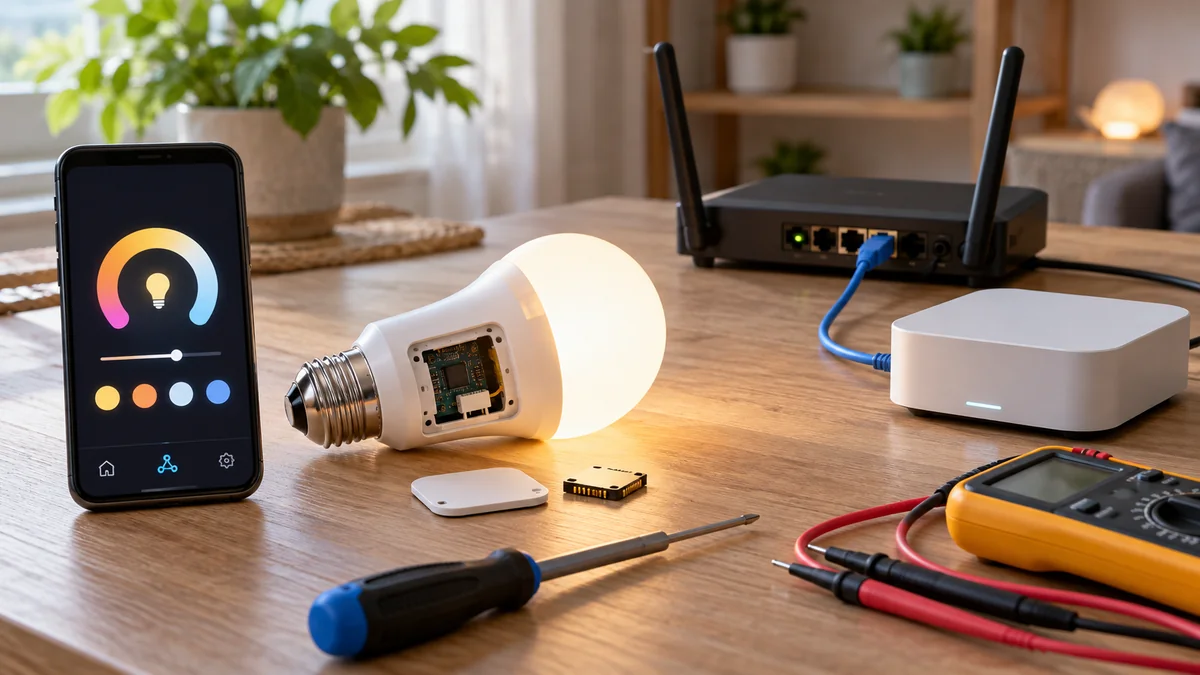
Govee matter home assistant can work through Matter. The exact Govee model must support it, and Home Assistant’s Matter Server must reach it over local IPv6.
If the light already belongs to another smart-home app, share it from that controller.
Expect basic light controls first. Keep the Govee app in the comparison if you need color segments, moving scenes, or a second light zone.
The short answer: verify the model, choose new-device or multi-admin setup, prove local network reachability, and inspect the resulting Home Assistant entities before you reset or return anything.
The smart-home troubleshooting map uses the same rule: identify the failed handoff before deleting a working configuration.
The model decides whether Matter exists at all
Check the model first.
A light in Govee Home does not prove that its hardware supports Matter. Govee’s Matter FAQ, checked October 19, says older products cannot gain Matter because they lack the needed hardware.
That statement is not a full model list. Match the code on your light, its control box, the retail box, or the Govee product page with the current product guide.
Then confirm that the device shows a Matter QR code or number.
Do not infer support from a similar product name.
The same FAQ describes Govee’s Matter route as Wi-Fi. It calls for IPv6 and a phone or tablet on the 2.4 GHz network during setup.
Those rules come from the general FAQ. Check the exact model page and firmware screen before you apply them to your light.
Home Assistant also tells users to check the Matter logo, network type, and setup code. A Thread logo alone would not prove Matter.
The current Govee FAQ describes its own Matter products as using Wi-Fi.
Write down four fields: model code, firmware version, visible Matter code, and whether the light is already controlled by another ecosystem.
That note separates a product with no Matter support from one that entered the wrong setup path.
Govee matter home assistant has two setup paths
A new Matter device and one already in another app need different setup paths.
For a new device, Home Assistant’s Matter guide says to use the Companion app. Choose that the device is new, then scan its Matter code.
On Home Assistant OS, the supported path installs the official Matter Server add-on.
For a light already controlled elsewhere, choose that it is already in use. The first controller must make a fresh sharing code.
Do not reuse the first code for a second controller. Ask the app that already owns the light for a new one.
Do not reset yet.
A reset can erase a working setup without fixing the Matter Server or local traffic. First confirm that the Matter integration loads and the Companion app is current.
Home Assistant says Matter needs local IPv6 and mDNS traffic. It does not need an IPv6 internet link.
VLANs and filters can still block discovery even when the internet works. The useful test is whether the Matter Server can find the light on your local network.
| What you find | Next decision | What not to assume |
|---|---|---|
| No Matter code for the exact model | Confirm the current model page; keep its existing integration or replace it only if local Matter is required | A similar Govee model carries the same support |
| New device with a valid code | Use Add device and the new-device path in the Companion app | A browser setup offers the same commissioning flow |
| Already paired to another controller | Create a fresh sharing code from that controller | The printed factory code can add a second fabric |
| Pairing starts but discovery fails | Check Matter Server, local IPv6, mDNS, VLANs, and the phone’s network | Cloud control proves local Matter reachability |
A successful pairing can still expose fewer controls
Connected does not mean feature-complete.
Govee’s FAQ lists on/off, brightness, color temperature, and color changing as current Matter features. Treat that as a baseline, not a promise for every model.
A Home Assistant community report describes several Govee Matter lights that paired and offered basic controls. The writer did not get micro-zones, single segments, advanced effects, or some extra lights.
The question that settles this is which entities appeared, not whether the light paired.
Open the device page and record what appears. Test power, brightness, color temperature, and one color change, then compare that list with what you use in Govee Home.
Do not turn one user’s result into a rule for every model. Firmware, device features, Matter, and Home Assistant can change at different times.
If a light works but buzzes or flickers at a particular level, Matter pairing is no longer the first diagnosis. Use the separate LED and dimmer compatibility check before blaming the controller path.
Make the keep-or-return decision from one evidence card
Finish with four lines: exact model and firmware, new or shared setup path, Matter Server and local IPv6 result, and the controls Home Assistant showed.
Keep the light when its local link and controls fit the room. Keep Govee Home for scenes that Home Assistant lacks.
Return or replace it when the exact model lacks Matter and local Matter was a must-have. Consider another integration only after you know its cloud use, upkeep, and feature limits.
If setup still fails, download Home Assistant’s device report before removing the light. Its guide says the report includes device and network facts with private data removed.
Do this now: put those four lines beside the product’s return deadline. For govee matter home assistant, that card tells you whether to repair the setup path, accept the available controls, or choose a model with documented support.

Bolt & Bulb covers what goes wrong after the unboxing: devices that drop off Wi-Fi, dimmers that flicker with LED bulbs, locks that will not fit a rental door. The site draws on manufacturer documentation, platform support pages and release notes, and attributed owner reports in public forums.