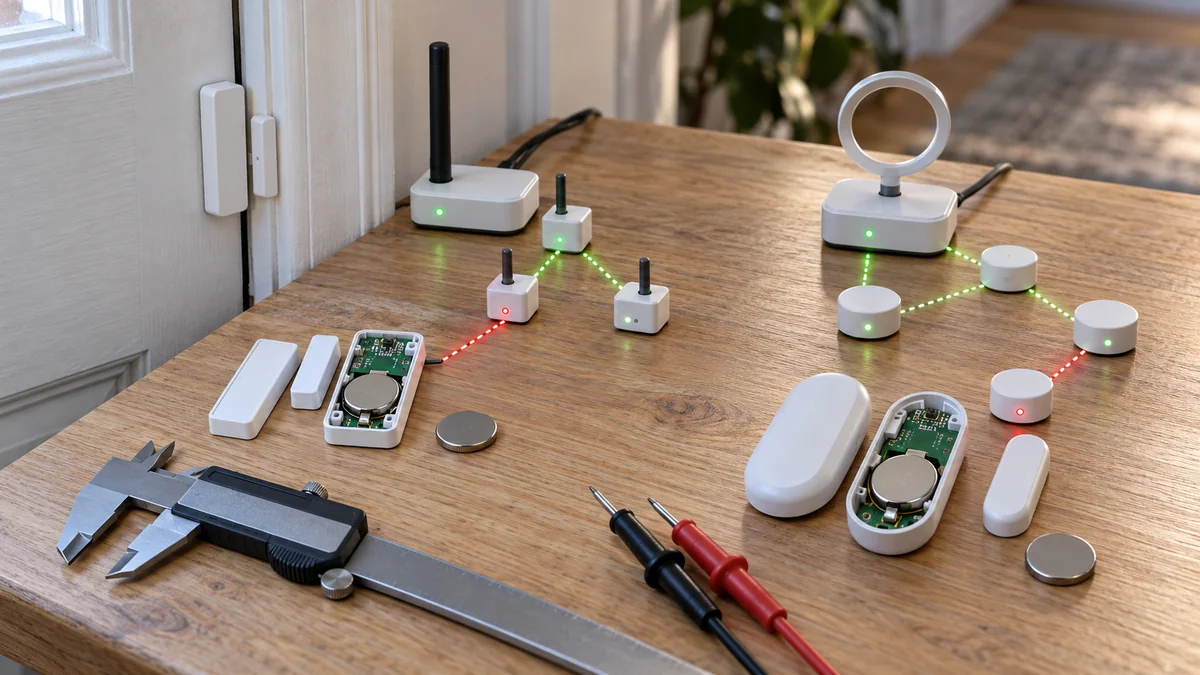
The sensor worked yesterday, but the app now calls it offline again.
If an Aqara door sensor keeps going offline, identify the model before you reset it. A Zigbee T1 and a Matter-over-Thread P2 do not use the same battery, radio path, or hub test.
Read the model label, preserve the current app state, and run the matching reversible check first.
Keep the site’s smart-home troubleshooting map nearby if a second device fails. It traces hub, radio, and app outages without making a reset the first move.
Aqara door sensor keeps going offline on two radio paths
“Aqara door sensor” is not one technical description. The T1 specification names model DW-S03D, a CR1632 battery, and Zigbee 3.0.
Aqara’s P2 support page describes a native Matter device built on Thread.
That difference changes what “offline” can mean.
| Label on the sensor | Official radio and battery | First dependency to check |
|---|---|---|
| Door and Window Sensor T1, DW-S03D | Zigbee 3.0, CR1632 | The paired Zigbee hub or coordinator and the installed range |
| Door and Window Sensor P2, DW-S02D or DW-S02E | Thread and Bluetooth, CR123A | The Matter controller, Thread border router, and platform that commissioned it |
The model numbers and batteries above come from Aqara’s current T1 specifications and P2 user manual. Both were checked October 18, 2026.
If the label shows an older original sensor or another regional model, use its manual. Read the battery marking inside the compartment too.
Do not buy a CR1632 or CR123A from the product family name alone.
Run the reversible range check before a reset
For a T1 paired to an Aqara hub, single-press the sensor’s reset button at its installed position. Aqara calls this an “effective range test”; its FAQ says the hub’s “Normal link confirmed” prompt shows that the sensor and hub can communicate.
No prompt is useful evidence, not a command to erase the device.
Move the sensor close to the hub and single-press once more. Does it pass there?
A pass near the hub after a failure on the door points toward distance, the radio path, or the mounting location. It does not point to a dead contact sensor.
Aqara’s T1 FAQ lists three causes of frequent offline status: distance, a low or dead battery, and installation on metal.
It also says to bring the sensor and magnet together and apart two or three times. Then watch whether the app state changes.
That second test separates a working radio link from a contact state that never changes.
Do not apply the T1 voice-prompt hub test to a P2. Aqara’s P2 instructions require a Matter app and a compatible Thread border router.
Check both in the system where you first added the P2.
The offline label may stop at one app
Compare the sensor in its original platform with one other app before touching the pairing button. Does the original platform record open and close events?
If it does, the physical sensor and radio path have passed a useful test. The stale app is now the smaller problem.
If every platform misses the event, check a second device on the same hub, coordinator, or Thread network. Does it still report?
One silent sensor points back toward its own battery, placement, route, or hardware.
Several silent devices point toward the shared system instead.
For a Zigbee sensor joined directly to Home Assistant instead of an Aqara hub, use the coordinator’s device history rather than waiting for an Aqara voice prompt. The site’s Aqara Home Assistant event trace shows how to distinguish a frozen value from a missing report without rebuilding the network.
“Aqara sensors keep disconnecting” was the symptom one Home Assistant user reported even after battery swaps and re-adding devices.
That community report does not prove one cause for every home. It shows why repeated pairing is a poor first move.
The actual fault may sit in the shared radio system or a route used by that controller.
Let the failed branch choose the purchase
Use the result, not the offline badge, to decide what deserves money.
- Battery branch: Replace only with the type printed for the exact model. Retest before changing placement or pairing.
- Installed-position branch: If the sensor works close to its hub but fails on the door, test away from metal. Improve the matching Zigbee or Thread path. A Zigbee plug is not a Thread border router, and a Thread border router is not a T1 hub.
- Shared-infrastructure branch: If several devices disappear together, restore the hub, coordinator, controller, or border router before replacing one sensor.
- Sensor branch: If the exact replacement battery and a close-range model-specific test still produce no event, save the result and contact Aqara or the retailer about replacement.
A wrong open or closed state is different from an offline state. Check magnet alignment and the model’s maximum gap before blaming the network.
The T1 specification gives 22 mm. Do not copy that number to another model.
If door fit is changing the gap, measure before buying spacers or a new lock. The smart-lock door measurement check covers the physical side without treating a fit problem as a radio failure.
Write down the evidence before you reset
Make a five-line field note: exact model, battery type and change date, app showing offline, result beside the required hub or border router, and whether a second device failed at the same time.
Then follow the reset instructions for that model only.
The T1 manual assigns a five-second hold to reset and network connection. Aqara’s P2 manual uses a five-second hold to enter pairing mode.
Use the reset steps printed in the current manual and shown in the app for the label in your hand.
Resetting first removes the comparison between the door location and the close-range test. A later recovery then proves little.
Was it the new battery, a different path, or simply rejoining the network? You will not know.
Read the label now and record one unchanged test. If the Aqara door sensor keeps going offline after the matching battery and close-range path pass, take that evidence to support before buying a hub, border router, or replacement sensor.

Bolt & Bulb covers what goes wrong after the unboxing: devices that drop off Wi-Fi, dimmers that flicker with LED bulbs, locks that will not fit a rental door. The site draws on manufacturer documentation, platform support pages and release notes, and attributed owner reports in public forums.