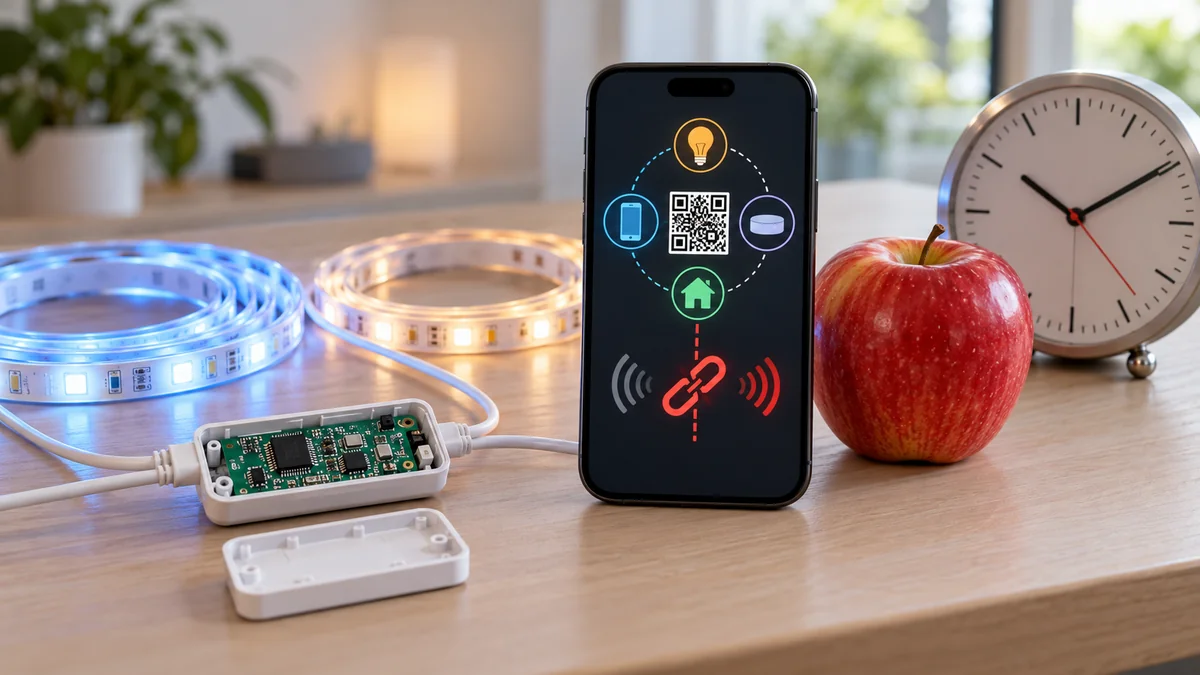
When Govee lights won’t connect to Apple Matter, verify the exact model and open a fresh 15-minute setup window before you reset anything.
Do not assume an Apple home hub is required. Apple’s Matter support page says an iPhone on iOS 18 or later can add Matter accessories without one, while Govee’s general FAQ still includes a Matter hub or controller in its setup path.
If another ecosystem already controls the light, create a new sharing code there instead of scanning the original code again.
Keep the site’s smart-home troubleshooting map nearby. It helps separate a product problem from a failed handoff without deleting a working setup.
A successful scan begins before Apple Home opens
Start with the label on the light, control box, plug, or packaging.
A product family name is not enough. Two lights can look alike while only one hardware version has a Matter code and the right radio.
Govee’s Matter FAQ, checked October 19, says older products cannot gain Matter because the needed hardware is absent. It also says a supported product should provide a QR code or device number on the product or in Device Settings.
That page does not promise support for every current model.
Match the exact code on your hardware with its current product page and firmware screen. If neither the device nor its Govee settings show a Matter code, stop treating a generic Matter logo in a search result as proof.
Apple Home supports lights as a Matter accessory category. That confirms the category, not a particular Govee model, revision, or firmware.
Write down the model before changing the setup.
Govee lights won’t connect to Apple Matter after the timed window closes
Govee says first-time Matter network setup must finish within 15 minutes after the product is powered on. A code can be correct while the device is no longer accepting a new commissioner.
- Photograph the model label and every Matter code location before moving the light or discarding the box.
- Update the iPhone or iPad, enable Bluetooth, and connect it to the 2.4 GHz network named in Govee’s instructions.
- Confirm IPv6 is available on that local network, because Govee lists it as a requirement for its Matter path.
- Open a fresh setup window using the power or commissioning action documented for the exact model, then start Apple Home immediately.
- In Home, choose Add Accessory and scan the code once. Record the error and elapsed time if setup stalls.
Use the exact model instructions.
Do not borrow a button sequence from a different lamp. A factory reset can erase evidence that the light already belongs to another ecosystem.
A recent Govee community report described hours of retries before the owner noticed the need to connect “within 15 min from powering on.” That result matches Govee’s published window.
It does not prove every timeout has the same cause.
The useful lesson is narrower: time one clean attempt before changing the router or returning the light.
An existing Matter home needs a new sharing code
The printed code is for the initial commissioning path. It is not the right code to reuse after the light has already joined another Matter ecosystem.
Govee says to open the original controller, find or create a new 11-digit pairing code, and enter that code in the second controller. Apple likewise tells users to choose More Options for a previously paired accessory.
This distinction matters when the light already works in Google Home, Alexa, SmartThings, Home Assistant, or another Matter controller. A failed scan in Apple Home may be an ownership-path error rather than bad hardware.
Do not remove the working controller first.
Generate the sharing code while that controller can still see the light, keep its sharing page open, then add the accessory from Apple Home. Record which app generated the code and when.
Govee also warns that using its app to switch networks can disable the Matter function and require a new Matter connection. Treat a network change as a separate event, not as a harmless retry.
The hub and network rules depend on the path you actually have
Govee’s general FAQ and Apple’s current support page do not describe the hub requirement in the same way.
Govee lists a Matter hub or controller and names Apple hub models. Apple says an iPhone running iOS 18 or later can add and control Matter accessories without a home hub, while recommending a hub for the best experience.
Keep that difference visible.
Check the iPhone model, iOS version, exact Govee model, and desired remote-control features against the current pages. Do not turn Govee’s broad list or Apple’s newer phone path into a guarantee for hardware they do not name.
Govee currently describes its Matter products as using Wi-Fi and calls for a 2.4 GHz phone connection plus IPv6. That means a Thread border-router checklist does not automatically diagnose this Govee path.
After the timed attempt, note four facts: whether Apple Home discovered the light, whether it accepted the code, whether it reached the naming screen, and whether the light stayed in the original controller.
Those checkpoints identify the failed handoff more reliably than “it kept connecting.”
If another Matter accessory works, keep that fact but do not treat it as proof that this model, code, or commissioning window is valid. If no Matter accessory can join, investigate the shared Apple and network path before blaming one light.
Keep one record before you exchange the light
Put the model, firmware, code source, current controller, iPhone and iOS version, SSID band, IPv6 result, setup start time, and exact Apple error on one card.
Keep the light when its exact documentation includes Matter and one correct timed or shared-device path succeeds. Return or replace it when the exact model lacks documented Matter support and local Apple Home control was a purchase requirement.
Ask Govee support to interpret a repeatable error when the documented model still fails. Send the evidence card instead of a list of every reset attempted.
A replacement still needs an exact model match. The same rule appears in the bathroom fan duct-size check, where a product family cannot replace the exact install guide.
Do not buy a new Apple hub solely because an older Govee page lists one. First compare the current Apple requirement with the phone and control features you actually need.
Do this now: write the model and setup start time beside the return deadline. When govee lights won’t connect to apple matter, that small record tells you whether to reopen the window, use a sharing code, fix the common path, or exchange the product.

Bolt & Bulb covers what goes wrong after the unboxing: devices that drop off Wi-Fi, dimmers that flicker with LED bulbs, locks that will not fit a rental door. The site draws on manufacturer documentation, platform support pages and release notes, and attributed owner reports in public forums.