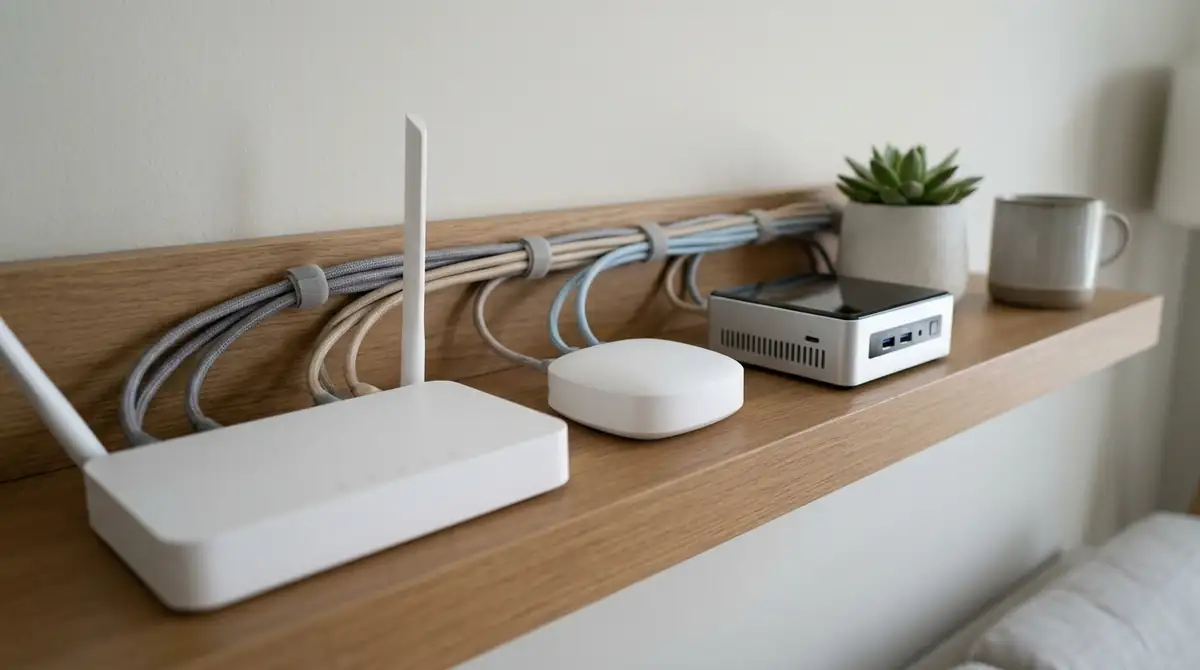
A thread border router for Home Assistant connects your Thread mesh to the home network; it doesn’t control a device by itself. If Home Assistant already lists an Apple or Google Thread network, import that network’s credentials before buying another radio. If no Thread network exists, create one with a supported Thread radio and the OpenThread Border Router app, then sync its credentials to your phone.
Start with the network you have.
Most failed setups aren’t missing a second box. They have a border router, a Matter controller, and a phone using different Thread credentials.
Why a border router isn’t a Matter controller
Thread is a low-power IPv6 mesh. A border router forwards packets between that mesh and your Ethernet or Wi-Fi network. Home Assistant’s current Thread documentation is explicit about the boundary: the border router doesn’t inspect or control the devices carried in those packets.
Matter or Apple HomeKit sits above Thread and handles device control. A Matter-over-Thread sensor therefore needs two separate pieces: a reachable Thread network and a Matter controller. In Home Assistant, that means the Thread side can look healthy while the Matter integration or commissioning step still fails.
This distinction prevents the most expensive wrong fix. Adding another radio won’t repair a missing Matter integration, and installing the Matter integration won’t give a Thread-only device a route when no border router exists.
| What you already have | Best next move | Don’t buy yet |
|---|---|---|
| HomePod, Apple TV, Nest Hub, or Nest Wifi with a Thread network listed | Import that network’s credentials and make it preferred | A second USB radio |
| No Thread network, but Home Assistant Yellow or a Connect ZBT radio is available | Follow the official OpenThread Border Router setup for that exact radio | An unsupported development board |
| Thread network is preferred, but a Matter device won’t add | Check the Matter integration, phone credentials, Bluetooth, and local network | Another border router |
| Device has only a Wi-Fi logo | Use its Wi-Fi setup path | Any Thread hardware |
My recommendation is to reuse a supported border router already in the house. Home Assistant can work with third-party border routers, while its own docs warn that its Thread integration is still a work in progress. Buy a dedicated radio only when the Thread screen proves you have no suitable network or when you have a measured coverage gap.
Thread border router for Home Assistant in 5 checks
- Read the device label. Confirm that it uses Thread, then find the control logo. Matter uses the Matter integration. Apple HomeKit uses the HomeKit Device path.
- Open the Thread list. Go to Settings → Devices & services → Thread → Configure. Add the Thread integration if needed. Write down each network and its routers.
- Choose one network. If Apple and Google networks both appear, pick one for new devices. Use the Companion app to import its credentials into Home Assistant.
- Make it preferred. Mark the chosen network as preferred. If Home Assistant created it, sync the credentials to the phone that will add the device.
- Add the device. Use the Matter flow for Matter. Keep the phone near the device and a border router. Use the HomeKit Device path for HomeKit over Thread.
If you have no Thread network, install the OpenThread Border Router app on Home Assistant OS and attach a supported radio. Yellow, Connect ZBT-1, and Connect ZBT-2 run Zigbee out of the box. Owning one doesn’t mean it already runs Thread firmware.
Match the guide to the exact radio. A third-party adapter may need OpenThread firmware, its documented baud rate, and a USB extension cable. Don’t copy a random baud rate or flash instructions written for another chipset.
Keep the radio away from a metal cabinet and crowded USB ports. The home installation guide explains the same physical rule for hubs and cables: secure placement matters, but it comes after compatibility.
Seeing the router isn’t knowing the network
This is the part the interface makes easy to miss. Thread border routers advertise their presence on the local network, so Home Assistant may discover and list one. Those announcements don’t include the Thread network credentials. Discovery proves that a router spoke; it doesn’t give Home Assistant the password-like dataset needed to add devices.
“Error: No preferred network found.”
A Home Assistant Community user reported that message while the integration could already see the intended border router. The useful clue in the reported setup wasn’t the router model. It was that Home Assistant still lacked a usable credential dataset for the network.
Device power, radio or LAN reachability, and controller state are separate facts, and an interface that lists a border router proves only that the router spoke. Write down which layer you can actually prove before changing it: a listed Thread router doesn’t prove Home Assistant knows its credentials, and a preferred Thread network doesn’t prove the Matter server is ready. Until those screens have been checked, another radio isn’t the answer.
There is another wrinkle. Home Assistant says its preferred-network function isn’t completely implemented, and a device added through a Companion app currently uses the mobile device’s preferred Thread network. That is why the credential-sync step belongs in the setup, even after the correct network says “preferred” in Home Assistant.
Take screenshots of the Thread configuration page before deleting or resetting anything. Record the network names, which one is preferred, whether credentials are known, and which border routers sit under each network. A factory reset can erase the only evidence that two networks were competing.
When pairing still fails
The Home Assistant Matter guide describes a chain. The phone finds the device over Bluetooth, shares Thread credentials, and lets it join the mesh. Matter then adds it to Home Assistant. “Pairing failed” doesn’t identify the broken handoff.
Check the chain in that order:
- Keep the device in pairing mode. If its setup window expired, restart that mode with the maker’s instructions. Don’t reset the Thread network.
- Move the phone close. Keep Bluetooth enabled and place the phone near both the new device and a border router for the first attempt.
- Verify the phone’s credentials. Repeat the official sync action for the preferred network. Check that the phone isn’t using a different vendor’s network.
- Check IPv6 and discovery. Thread is IPv6-only. Home Assistant and the router need IPv6. Routed or virtual setups may also need forwarding. Mesh Wi-Fi can block mDNS while internet access still works.
- Read the first relevant log line. An unreachable device, a credential error, and a Matter-server failure need different fixes. Save the line before restarting an add-on.
Don’t begin by changing the Thread channel. Current Home Assistant guidance says a channel switch is scheduled roughly five minutes ahead so devices can move together; restarting during that wait interrupts the change. Channel work belongs after credentials, IPv6, range, and commissioning have been separated.
Some alarming logs aren’t the failure either. Home Assistant documents mDNSPlatformSendUDP got error 99 messages on Docker virtual interfaces as cosmetic when the real network interface can still advertise. Match a log to the symptom before treating every red line as a broken border router.
For a broader handoff-by-handoff check, use the smart-home troubleshooting map. It keeps a phone problem from turning into a hub reset.
A second border router should join the first network
Thread supports multiple border routers on one Thread network. That can extend radio coverage and remove a single point of failure. Two border routers on two separately credentialed networks do not provide the same benefit; devices can’t roam between those networks just because Home Assistant lists both.
This is why “preferred” describes a Thread network, not a favorite physical router. If you add a Home Assistant OpenThread border router to a house that already has Apple or Google Thread, import the existing credentials first and follow the official case for joining that network. Creating a fresh ha-thread network by accident can leave you with more hardware and the same dead zone.
Skip an ESP development board unless you want a development project and its exact OpenThread REST API support is documented. A forum post showing that a board can route Thread isn’t a promise that Home Assistant can configure it, retrieve its credentials, or keep working after an update.
Do one thing now: open Settings → Devices & services → Thread → Configure and photograph the network list. That single screen tells you whether a thread border router for Home Assistant is missing, merely detected, or ready for credential sync; then follow the matching official case without resetting the networks that already work.

Bolt & Bulb covers what goes wrong after the unboxing: devices that drop off Wi-Fi, dimmers that flicker with LED bulbs, locks that will not fit a rental door. The site draws on manufacturer documentation, platform support pages and release notes, and attributed owner reports in public forums.