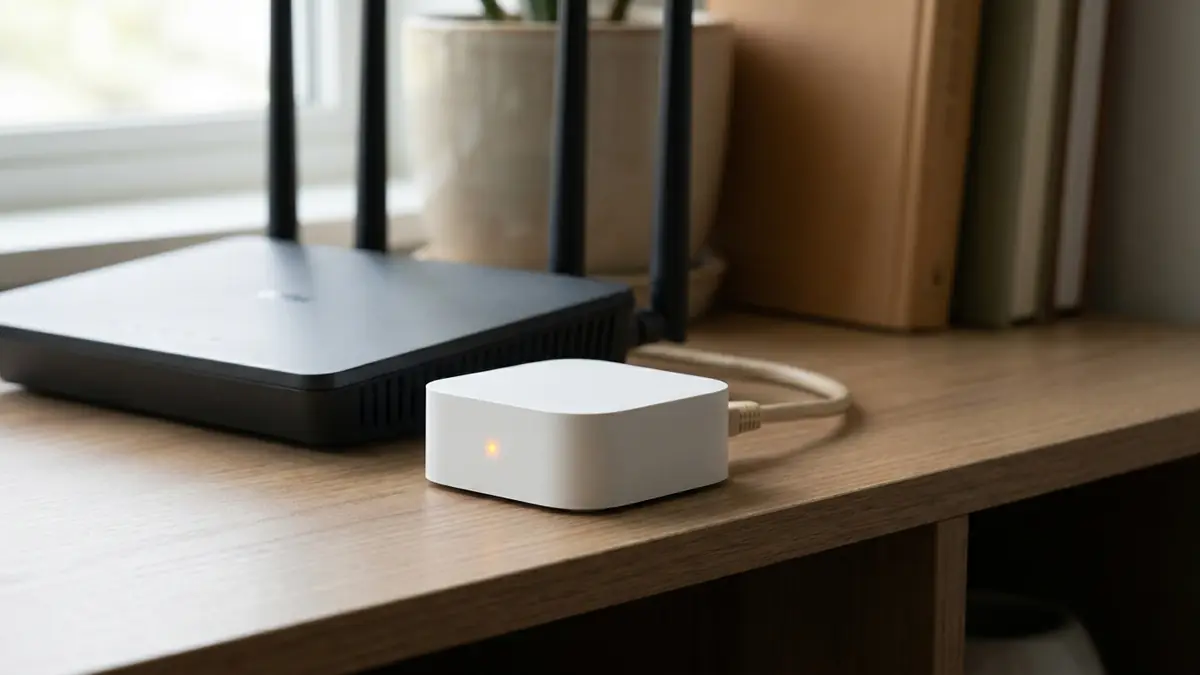
Hue Bridge not connecting? Read the three blue lights before you reset anything. If the first two are on, the Bridge already has power and a route into your home network; use its IP address in the Hue app instead of waiting for automatic discovery. If only the first light is on, fix the Ethernet path first.
The lights narrow this down quickly.
This guide is for the square Hue Bridge V2 that connects to a router by Ethernet. A phone can use Wi-Fi to control it, but the Bridge itself isn’t waiting for your Wi-Fi password.
Hue Bridge not connecting? Read the three lights
Philips Hue’s own Bridge support page assigns one link to each light. From left to right, they show power, a connection to the router or modem, and a connection to Hue’s internet services. The illuminated ring around the center button is the Zigbee signal.
That order matters. The app’s message says only that it can’t finish a connection; the hardware lights tell you which part of the route exists.
| What you see | What it rules in | Work on this next |
|---|---|---|
| No left light | The Bridge isn’t reporting power | Outlet, power adapter, and power plug |
| Left on, middle off | Power is present; the router link is not | Ethernet cable and router LAN port |
| Left and middle on | The Bridge has reached the local network | App discovery, phone network, then manual IP search |
| First two on, right off | Local network exists; Hue internet service is not ready | Bridge software update and internet path |
Don’t translate “third light off” into “bad Bridge.” Philips says an out-of-date software version can keep that internet-service light off. Its published fix is to connect through the app, run the software update, and repeat the update if the app asks.
The more useful split is local versus internet. If the middle light is on but the app can’t find the Bridge, swapping bulbs won’t help. Your bulbs speak Zigbee to the Bridge; your phone is failing on a different side of it.
Fix the connection in this order
- Photograph the lights. Do it before unplugging anything. A reboot can erase the best clue you have.
- Check the square Bridge’s Ethernet link. Reseat both cable ends and try a working LAN port. If the middle light stays off, test another cable.
- Put the phone on the main home network. Leave guest Wi-Fi, turn off a VPN for setup, and avoid mobile data.
- Look for the Bridge in the router. Open the router’s connected-device or client list. Match the MAC address printed on the back of the Bridge, then copy the IP address shown beside it.
- Search by IP in the Hue app. During Bridge setup, tap Search. If it fails, Philips directs you to I need help, then More options, where you can search with the IP address.
- Press the large button only when prompted. It authorizes the app; it doesn’t repair a missing Ethernet link.
- Install every offered Bridge update. Philips notes that the update may need to be run more than once. Finish that work before judging the third light.
Manual IP entry isn’t an unofficial workaround. It is the manufacturer’s documented branch for a Bridge that automatic search can’t find.
“Fixed by connecting via the IP address through the app.”
That update came from a Hue owner whose router already showed the Bridge online. Restarts and new cables hadn’t helped. The assigned address was the clue.
If your router lists the Bridge but the Hue app doesn’t, stay on that branch. Copy the current address rather than one from an old screenshot; a router can assign a different address after a reboot.
Draw the route before you replace the box
“The network” is four separate handoffs: power into the hub, the hub into the router, the phone to the local network, and the hub’s radio out to each device. A green check at one handoff says nothing about the next one.
That is why a favorite brand or a reboot count settles nothing. A powered bulb may still be absent from Zigbee. A Bridge with a router address may still be invisible to an app’s discovery scan. Those aren’t the same failure, so write down the last point you can actually see.
The paper test for a hub has four lines: power light, router light, address in the router, and discovery in the app. Fill them in before unplugging anything. With a Hue Bridge, the first two lines are LEDs, and Philips documents the third as the fallback for the fourth.
Use that evidence. The site’s smart-home troubleshooting map follows the same rule: test one handoff at a time, and don’t erase a working part while chasing a broken one.
When the IP search still fails
Start with what the router can prove. If it doesn’t list the Bridge’s MAC address and the middle LED is dark, keep the problem between the Bridge and router. A different phone or a Hue account change can’t repair that physical link.
If the router lists the Bridge and manual IP search fails, check the phone’s network again. Guest Wi-Fi and client isolation can stop local devices from talking. Test from the main network before changing security settings permanently.
If the app connects but the third light remains off, open Settings → Software update. Philips says the Bridge may require the update step more than once. Its Bridge release notes also show that connection and DNS fixes arrive in firmware, so “the bulbs used to work” doesn’t rule out a Bridge software issue.
Still stuck? Give Hue support the LED photo, Bridge MAC address, assigned IP, router model, and Hue app version. That snapshot tells them where the route stopped.
Don’t use the rear factory-reset button as a discovery test. The official support path gives you cable, IP search, and software update checks first. Finish those reversible checks, then let Hue support decide whether reset belongs in this case.
If placement is part of the problem, use the home installation guide to secure the cable without hiding the Bridge in a sealed cabinet.
Do this now: take one photo of the three LEDs, open your router’s client list, and match the MAC address on the Bridge. If an IP appears, enter that address in the Hue app before you unplug or reset anything.

Bolt & Bulb covers what goes wrong after the unboxing: devices that drop off Wi-Fi, dimmers that flicker with LED bulbs, locks that will not fit a rental door. The site draws on manufacturer documentation, platform support pages and release notes, and attributed owner reports in public forums.