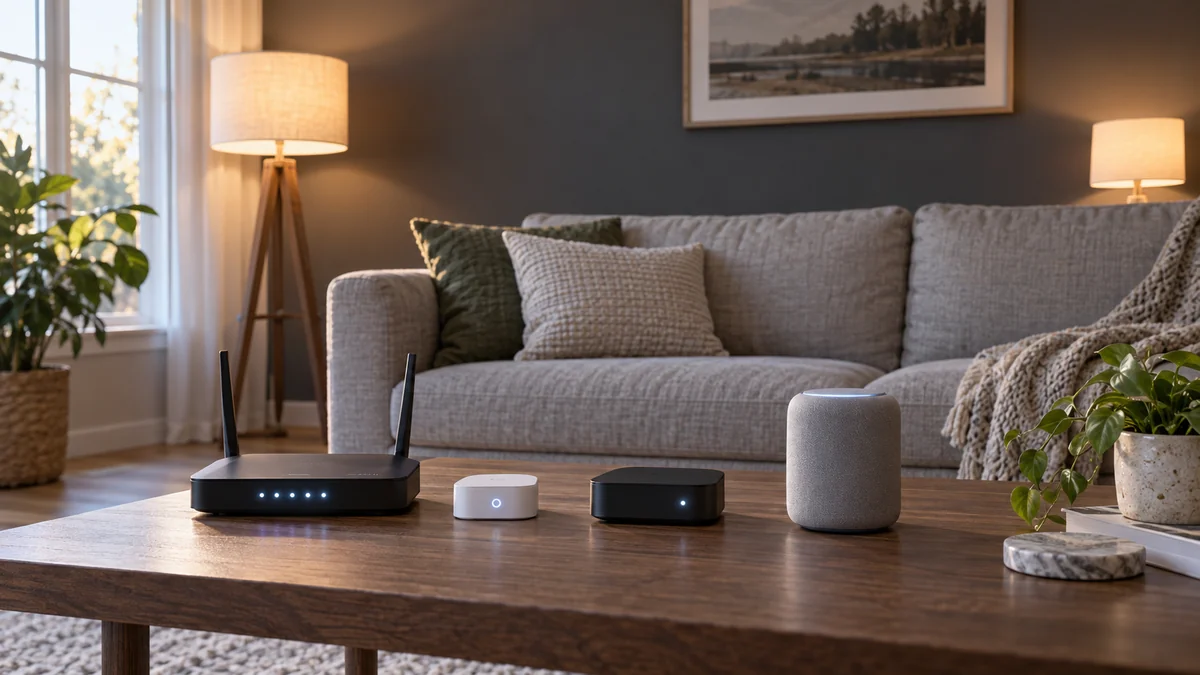
HomeKit no response after power outage usually calls for an ordered restart, not an immediate accessory reset.
First find out whether one manufacturer’s devices failed or several brands failed together.
Bring the router back first. Then restart bridges and home hubs, and reset an accessory only after the other paths work.
That order protects your rooms, scenes, and automations while you locate the broken handoff.
Give Thread devices extra time. Apple says to disconnect third-party Thread accessories for five minutes, reconnect them, and wait ten minutes for the Thread network to stabilize.
HomeKit no response after power outage starts with scope
Don’t begin with the device closest to you. Begin with the pattern.
Apple’s current troubleshooting guide separates accessories from one manufacturer from accessories made by several manufacturers.
That distinction changes the first useful test. One brand points toward its accessories, firmware, or bridge, while several brands point toward the shared Wi-Fi network or Apple home hub.
- Check one accessory from each affected brand in the Home app.
- Try the affected device in its manufacturer’s app, if it has one.
- Try a local command while your phone is on the home Wi-Fi network.
- Open Home Hubs & Bridges and note which hub is active.
If a lamp works in its manufacturer’s app but not in Home, it still has power and a network path. Focus on the bridge, Home integration, or home hub before touching the lamp’s pairing data.
If the manufacturer’s app also fails, stay on that brand’s power, firmware, bridge, and local-network path.
“I notice my devices go no response until I reboot my Hubitat hub or restart the HomeKit integration.” — a user in a Hubitat discussion
That report doesn’t prove one cause. It shows why you should test the shared link before rebuilding every accessory.
Restore the network in this order
An outage can return electricity to every box at nearly the same moment, but those boxes don’t become usable at the same moment. A bridge or home hub cannot reconnect through a router that is still starting.
- Let power and internet settle. Confirm that the router’s normal status has returned and that your phone can use the home Wi-Fi. Don’t judge HomeKit while the router is still reconnecting.
- Restart the modem and router. Apple’s several-manufacturer path starts by unplugging the modem and router and reconnecting their power. Keep your phone on that same Wi-Fi network when you test Home again.
- Restart bridges and every home hub. Reconnect third-party bridges, HomePod speakers, and Apple TV devices after the network is available. Then open Home Hubs & Bridges and confirm that an active hub appears.
- Restart only the accessories that remain down. Unplug mains-powered accessories where the maker allows it, or remove and replace batteries. For third-party Thread devices, use Apple’s five-minute power-off and ten-minute stabilization wait.
Test after each layer. If everything returns after the router, the accessory wasn’t the useful target.
If one bridge brings back an entire brand, don’t disturb the home hub or the individual devices.
Apple’s No Response instructions put accessory removal after restarts, firmware checks, and network checks. The point is simple: keep the setup until a smaller test fails.
For Matter over Thread, patience is part of the test.
A device that returns during Apple’s ten-minute wait needs recovery time, not new pairing credentials. Remove it during that wait, and a short mesh rebuild can become a full setup job.
One working app narrows the failure
Use the first working control path as evidence. It tells you what not to replace.
| What still works | Likely layer to test | Next move |
|---|---|---|
| Manufacturer app, but not Home | Bridge, Home integration, or home hub | Restart that bridge and every home hub; keep the accessory paired |
| One brand is down everywhere | Brand bridge, firmware, or accessory power | Check the maker’s app and support steps |
| Several brands are down | Router, Wi-Fi, or Apple home hub | Use the full network-to-hub restart order |
| Local control works, remote control fails | Home hub or internet path | Confirm the active hub is powered, updated, and on home Wi-Fi |
Apple says a home hub enables remote control. Thread-enabled Matter accessories need a Thread-capable home hub or supported border router for the full setup.
Apple’s home hub guide shows where to view the active hub. On supported software, you can also choose a preferred hub instead of automatic selection.
That doesn’t mean a new HomePod or Apple TV is the first purchase.
If your existing hub is active and other remote accessories work, buying another hub doesn’t answer why one device failed. Replace it only after an update, restart, placement check, and repeat test show the current hub is the failed part.
The same rule applies to backup power. A small UPS may be worth planning when brief outages repeatedly break the same router-and-bridge recovery chain, but it won’t repair bad firmware, a depleted battery, or a weak Thread path.
Reset only after one isolation test
Choose one failed accessory, not the whole home. Confirm its power, update it in the manufacturer’s app, restart its bridge, and verify that the home hub is active.
Now compare it with a working accessory from the same brand and one from another brand. That single comparison tells support far more than “everything says No Response.”
Remove and reset the accessory only if it still fails in the manufacturer’s path or the maker’s instructions require re-pairing. Apple warns that removing a Matter accessory from connected services removes your ability to control it from those services, so record its model, setup code, room, and automations first.
If several brands remain down after the ordered restart, contact Apple Support with the active hub, software versions, router model, and the exact scope. If one brand remains down, take the same notes to its manufacturer.
The smart-home troubleshooting map uses this same power-to-radio-to-network split for other outages. If recovery depends on moving or mounting a router or bridge, plan the physical change with the home installation guide before drilling.
Do one thing now: write down which brands fail in Home, which still work in their own apps, and which home hub is active.
Then run the restart order once. If HomeKit no response after power outage clears at one layer, stop there and leave every surviving pairing alone.

Bolt & Bulb covers what goes wrong after the unboxing: devices that drop off Wi-Fi, dimmers that flicker with LED bulbs, locks that will not fit a rental door. The site draws on manufacturer documentation, platform support pages and release notes, and attributed owner reports in public forums.