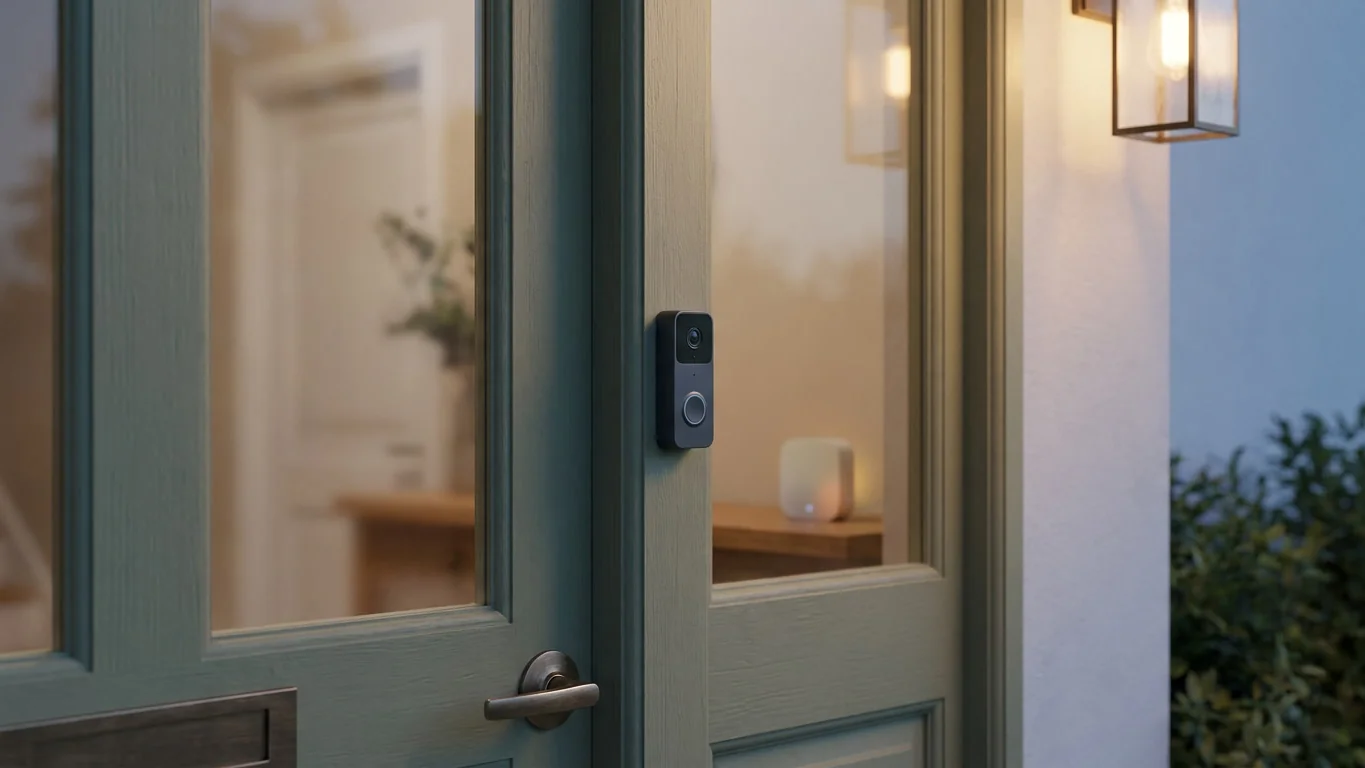
Does SmartThings work with Ring? Yes, for Ring doorbells and cameras that SmartThings lists in your region, after you link your Ring account. That does not mean every Ring Alarm sensor, arming mode, or automation feature will appear.
Check the exact model and the exact control you need before you buy anything. A Ring tile in SmartThings proves less than most compatibility pages suggest.
Why Ring support looks contradictory
Samsung currently tells users to open SmartThings, choose Add device, select Partner devices, search for Ring, and link the Ring account. Its Ring Doorbell setup page, updated in August 2026, says a connected doorbell can provide live notifications and controls on a phone and certain Samsung screens.
Ring gives a narrower answer. In a thread on Ring’s own community, a Ring representative wrote that “only some devices are listed as compatible and not all devices.” The same reply says Alexa is Ring’s only officially supported integration, even though some Ring devices can still be used through SmartThings.
Both are accurate.
Samsung operates a working connection for selected Ring devices, while Ring does not promise SmartThings support across its whole product line. The useful question isn’t whether the two brand names connect. It is whether your model exposes your required feature in your region today.
This is a cloud account link. SmartThings sends you to Ring to authorize the account, then imports whatever that connection exposes. It isn’t the same as pairing a local radio device directly to a SmartThings hub. If either cloud service, the internet connection, or the account authorization fails, the imported device can stop responding even while the Ring app still works.
Does SmartThings work with Ring in 3 checks?
- Find the exact model inside SmartThings. Open Menu, select Supported devices, then search by brand for Ring. Samsung’s device support guide says this in-app list is the way to check regional support. Match the full model name, not just “Ring Doorbell” or “Ring Camera.” If the model isn’t listed, treat it as unsupported.
- Name the one feature you need. “Show live video on my phone,” “send a visitor notification to a Samsung screen,” and “trigger a SmartThings routine from motion” are three different jobs. Samsung’s setup page confirms doorbell control and live notifications. It does not promise that every event becomes a routine trigger, so check the device page and the routine builder for that capability after linking.
- Decide whether cloud dependence is acceptable. Test the Ring device in its own app first. Then link Ring through Add device and Partner devices. If it appears, open its SmartThings page and test the required control twice. A setup that must keep working during an internet outage needs a local path; this account-linked connection should not be assumed to provide one.
Do the checks in that order. Linking first can fill SmartThings with device names while leaving out the button or event you wanted.
What a passed check actually proves
| Your goal | What counts as proof | Decision |
|---|---|---|
| View a listed Ring doorbell | Live view opens from its SmartThings device page | Use the linked account |
| Show a visitor alert on a Samsung display | Your display and doorbell are both listed, and a test alert appears | Keep it only after the live test |
| Use Ring motion in a routine | The motion event appears as a selectable condition | Do not infer this from live view |
| Arm Ring Alarm or import every sensor | The exact alarm control or sensor appears in SmartThings | Assume no unless the app proves yes |
The table draws the line that marketing logos blur. Visibility, control, and automation are separate capabilities. Passing one row does not pass the next.
If Ring connects but the useful part is missing
Start in the Ring app. If live view, notifications, or the camera itself fails there, SmartThings cannot repair it. Fix the Ring account, power, Wi-Fi, or subscription issue on the Ring side first.
If Ring works in its own app, check SmartThings Linked services. Samsung’s third-party device troubleshooting page tells Ring users to remove the Ring device and Ring service, then add the service again. Do that only after you record any SmartThings routines that refer to the imported device, because removing a cloud connection can remove its devices from those routines.
Don’t factory-reset the doorbell to solve an account-link problem. A reset changes the device side while the broken authorization remains untouched. Re-authorize the service first, wait for the device list to refresh, and test the same feature again.
Still missing? Stop at the capability boundary. If live view works but motion isn’t offered in the routine builder, repeated relinking won’t create a capability the integration does not publish. Use the Ring app for that event, or choose a camera whose SmartThings listing explicitly includes the automation feature.
A doorbell tile is not a Ring Alarm integration
Ring sells doorbells, cameras, an alarm base station, contact sensors, motion sensors, lights, and other accessories under one name. SmartThings showing “Ring” as a partner does not turn that catalog into one supported device.
This matters most when the plan begins with a doorbell and ends with an alarm routine. Seeing a camera feed says nothing about whether SmartThings can arm the Ring Alarm, read each contact sensor, or use the alarm’s mode as a condition. Those are different device capabilities and require their own entries in the app.
Avoid unofficial workarounds until you have written down the actual job. A community driver, Alexa bridge, or separately paired sensor can sometimes expose a new control, but it also changes support, reliability, and where the automation runs. That is a poor trade for an entry alarm unless you can test failure behavior and maintain the extra link.
The same discipline applies to mounting the hardware. If a supported doorbell still has to fit a rental entry, use the home installation guide to separate platform compatibility from holes, power, and removal. Mixing those decisions is how a compatible device becomes the wrong purchase.
For connection faults after setup, the smart-home troubleshooting map separates the device, local network, radio, and cloud handoffs before you reset anything.
Now answer “does smartthings work with ring” for the device in front of you. Open SmartThings, find its full model under Supported devices, and confirm that the one control you need appears before you buy or rebuild the setup.

Bolt & Bulb covers what goes wrong after the unboxing: devices that drop off Wi-Fi, dimmers that flicker with LED bulbs, locks that will not fit a rental door. The site draws on manufacturer documentation, platform support pages and release notes, and attributed owner reports in public forums.