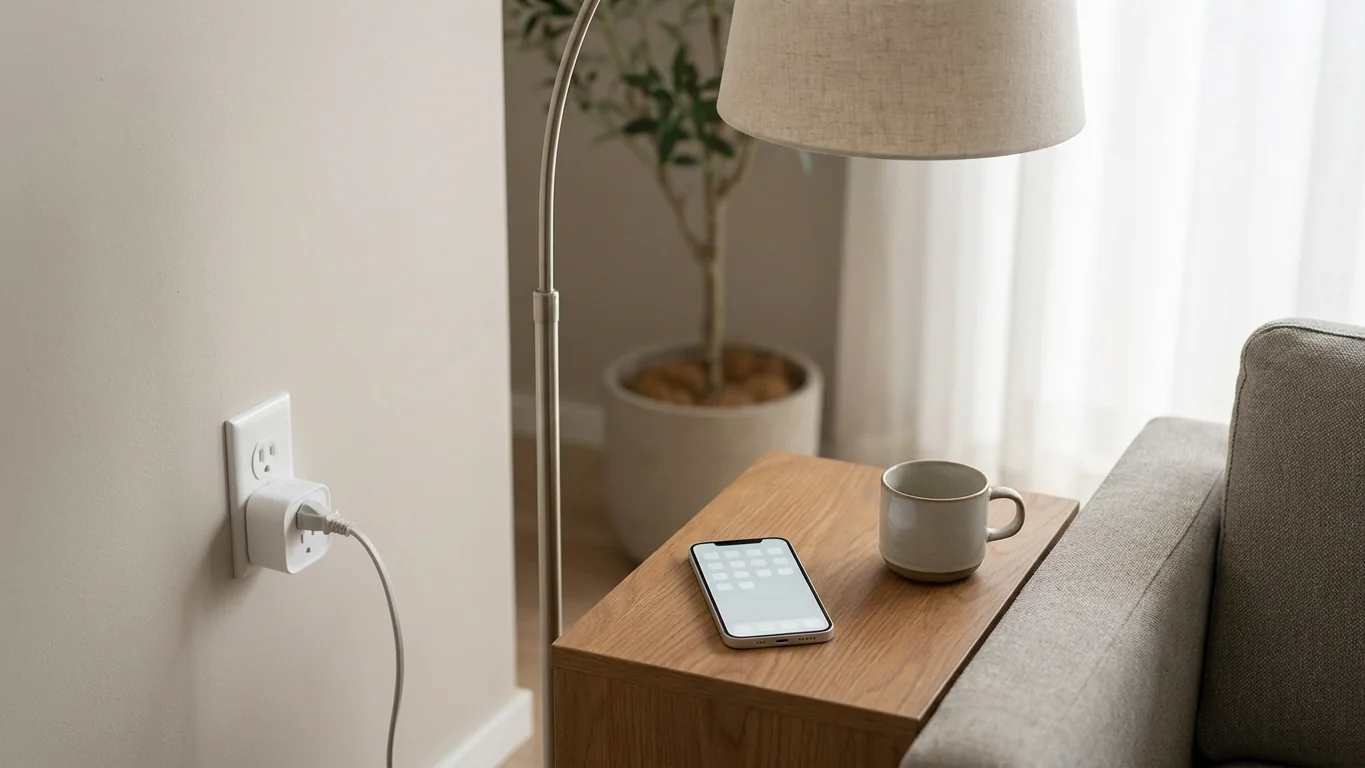
Smart plug not responding Apple Home? Open the plug maker’s app and press the same on/off control once. If it works there, leave the plug paired and troubleshoot Apple Home; if it fails in both apps, start with the plug’s power, connection, and firmware.
Don’t factory-reset it yet. That one test tells you which half of the setup deserves your next ten minutes.
Why “No Response” can mean two different faults
A smart plug has more than one control path. Its maker’s app may talk through the maker’s account or local network, while Apple Home uses the accessory’s HomeKit or Matter connection and may also involve a HomePod, Apple TV, or third-party bridge. One path can fail while another still switches the outlet.
Apple’s current No Response support page makes the first useful distinction: are accessories from one manufacturer failing, or are accessories from several manufacturers failing? That split matters more than the brand printed on the plug. One affected brand points toward that accessory, its firmware, or its bridge; several affected brands point toward shared Apple Home, hub, phone, or network infrastructure.
A HomeKit user described the sharper version of this symptom in an r/HomeKit thread:
“They work just fine in the Meross app, but show no response in HomeKit.”
That is a user report, not proof of a universal Meross fault. It shows why the second app test is useful: power and some form of device communication are still alive, so erasing the plug is a poor first move.
Smart plug not responding Apple Home checks in order
- Count what is actually offline. Try one accessory from another manufacturer in Apple Home. If only the plug or one brand fails, keep the investigation narrow. If lights, locks, and plugs from several brands all show No Response, skip accessory resets and check the shared hub and network path.
- Use the maker’s app once. Switch the plug on, then off. If that app also fails, confirm the plug has power, restart it using the maker’s instructions, and check for a firmware update. Apple tells users to check the manufacturer app for firmware before removing an accessory.
- Test while your phone is at home. Connect the iPhone, iPad, or Mac to the same Wi-Fi network as the accessories, turn on Bluetooth, close Home, and reopen it. Apple lists those checks before a broad restart when several manufacturers are affected. A VPN or third-party security tool can also interfere, so disable it briefly for this test rather than changing the router permanently.
- Restart only the shared layer that failed. For one affected brand, restart that plug and any bridge it uses, then restart the home hubs. For several brands, Apple advises restarting the modem and router, third-party bridges, home hubs, affected accessories, and the phone or computer. Let each device finish booting before judging the result.
- Save removal for last. If one accessory still fails after its maker-app and firmware checks, remove that accessory from Home, follow its manufacturer’s reset instructions, and add it again. Keep the HomeKit or Matter setup code within reach before you remove anything.
Thread plugs need a timed restart
Thread plugs get one extra timing check. Apple’s support sequence says to disconnect a third-party Thread accessory from power for five minutes, reconnect it, then allow ten minutes for the Thread network to stabilize. Don’t apply that wait to every Wi-Fi plug; first confirm the product actually uses Thread.
Apple’s accessory setup guide also separates Matter and Thread requirements. A Matter accessory needs a home hub in Apple Home, while a Thread accessory needs a Thread-capable home hub or compatible border router. That makes the exact radio label on the box or device page part of the diagnosis, not marketing trivia.
If the plug still shows No Response
Use the symptom that remains instead of repeating the whole list. This table identifies the smallest part worth changing next.
| What you observe | What it narrows down | Next move |
|---|---|---|
| One plug fails in both apps | The plug, its power, firmware, or its own network link | Follow the maker’s restart and update steps |
| One plug works in the maker’s app only | The Apple Home pairing, bridge, or home-hub path | Restart that path before removing the plug |
| Several brands fail in Apple Home | A shared hub, network, phone, or Home app issue | Restart shared devices; don’t reset each accessory |
| It works at home but not away | Remote access rather than the plug itself | Check the home hub and Apple Account |
The last row is easy to misread.
Apple says remote control requires a home hub, and the iPhone and hub must use the same Apple Account with Home enabled in iCloud. A plug that responds while your phone is on home Wi-Fi has already disproved a total plug failure.
If one manufacturer remains offline after its accessories, bridge, and hubs restart, contact that manufacturer.
If several manufacturers remain offline after the shared restart, contact Apple Support. Those are different support cases, and describing the maker-app result first will save both sides from repeating the wrong reset.
The reset that can make things worse
Removing one accessory is not the same as deleting your Apple Home. Don’t remove the whole home to repair one outlet. A whole-home reset forces every accessory and automation back through setup, while Apple’s fault guide stops at removing the individual accessory that still won’t respond.
Before removing that plug, record its room, name, scenes, and automations. Find the setup code on the device, box, or documentation. For Matter, check whether the accessory is also connected to another ecosystem; removing it from all connected services is a bigger change than removing one Apple Home connection.
A reset can also hide the original clue.
If the maker’s app worked before removal but Apple Home did not, the plug was reachable. Test the hub and Apple Home path first, or you may rebuild the accessory only to see the same No Response tile again.
For a broader device-by-device check, the smart-home troubleshooting map separates power, radio, local network, and cloud handoffs. If moving a hub or bridge becomes part of the fix, the home installation guide helps you judge placement and mounting without turning a signal test into permanent wall work.
Go back to the smart plug not responding Apple Home warning and run one test now: press on or off in the maker’s app. Keep the plug paired if it responds there, then work across the matching row of the table.

Bolt & Bulb covers what goes wrong after the unboxing: devices that drop off Wi-Fi, dimmers that flicker with LED bulbs, locks that will not fit a rental door. The site draws on manufacturer documentation, platform support pages and release notes, and attributed owner reports in public forums.