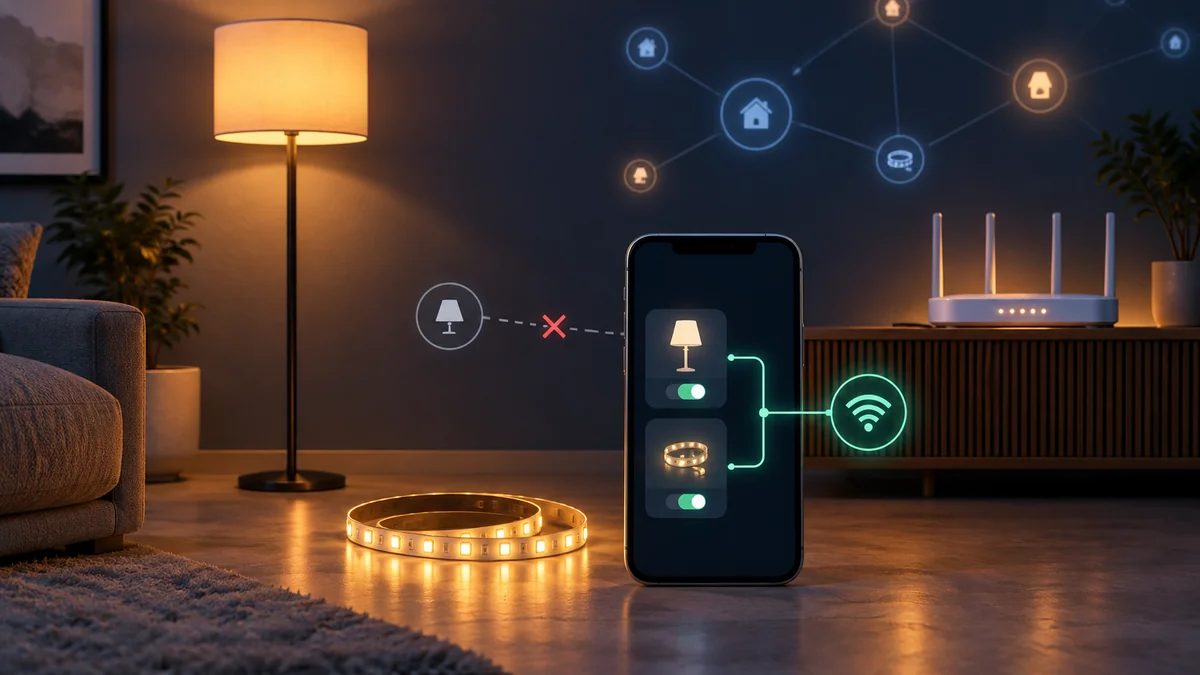
Govee matter not connecting to HomeKit should be checked in this order: exact model, setup window, prior Matter pairing, then local network.
A factory reset is not the first move.
First confirm that the model itself carries Matter support and note the last message Apple Home displayed.
Is the device already in Google Home, Alexa, or SmartThings through Matter? Its printed code may no longer be the code Apple Home needs.
If it has never joined a Matter home, start with the local radios and network. Check Bluetooth, 2.4 GHz Wi-Fi, IPv6, and how long the light has been powered on.
Use the smart-home troubleshooting map if several brands fail at once. If moving the router or lamp changes cable or mounting plans, check the home installation guide before relocating hardware.
Govee matter not connecting to HomeKit starts with the model
Read the full model number from the product label or Govee Home device page.
Start with the label.
A family name such as Floor Lamp or Strip Light is not enough. Matter and non-Matter versions can share a similar store name.
Govee’s current Matter FAQ says older products cannot gain Matter support through an update. Their hardware lacks the required chip.
That makes the Matter code the useful dividing line, not whether the light appears in the Govee app.
No code means stop troubleshooting Apple Home and verify the model’s official specifications. A HomePod, Apple TV, or router change cannot add a missing Matter radio.
Stop there. Don’t buy a hub.
| What you see | Check next | Do not do yet |
|---|---|---|
| No Matter code or menu | Exact model and certification | Buy a home hub |
| Accessory already added | Existing Matter ecosystem | Reuse the printed code |
| Unable to add or timeout | Setup window and local network | Erase every smart-home device |
| Added but no response | Wi-Fi reachability after setup | Repeat commissioning blindly |
Read the last completed screen before changing anything
Control in Govee Home does not prove that Matter setup finished.
The maker’s app can find and control a device while Apple Home is still waiting for its own secure Matter link.
Write down whether Apple Home found the accessory, accepted the code, joined Wi-Fi, assigned a room, or failed afterward.
Save that screen. It narrows the fault more than a generic “won’t connect” description.
One recent owner said the missing step was the “need to connect within 15 min from powering on.” That is one owner’s report, not a limit we found stated in Govee’s own documentation, so treat it as a timing clue rather than a rule.
The full discussion is in this Govee owner thread.
Keep the error stage. Do not copy every reset sequence from a different model.
Run four checks before erasing the light
- Update both ends. Install the latest iPhone or iPad software, then check the device firmware in Govee Home. Apple specifically tells owners to check for manufacturer firmware when Home says an accessory is unsupported.
- Match Govee’s local requirements. Turn on Bluetooth, connect the phone to the 2.4 GHz network used for setup, and confirm that IPv6 is enabled on the local network. Govee lists all three as Matter setup requirements.
- Start one clean first-pairing attempt. Power the device as its manual directs, open Apple Home immediately, and scan the Matter code within the first minutes after power-on rather than hours later. Keep the phone, light, and router close enough for setup.
- Keep the network simple. Put the phone and accessory on the same local network for the attempt. Pause a VPN if it isolates local devices, but don’t disable router security or erase unrelated accessories.
Seeing the same Wi-Fi name is not always enough. A guest network can let both devices reach the internet while blocking them from talking to each other.
For one test, place the phone, light, and Apple home hub on the same trusted main network.
Do not leave a guest network open or turn off the firewall. If this test works, use the router’s guide to allow the needed local traffic instead of weakening the whole network.
Govee says its Matter products use Wi-Fi, not Thread. A “Thread border router required” checklist therefore sends this particular diagnosis in the wrong direction unless your exact product documentation says otherwise.
Apple’s current Matter pairing guide also adds an important exception to older advice: an iPhone on iOS 18 or later can add and control supported Matter accessories without a home hub, although Apple recommends one for the best experience. Check the phone and accessory before buying a HomePod.
Use a new code for a second Matter ecosystem
The original QR code is for first setup. Govee says that after a Matter device joins one controller, you must open that controller’s device settings and generate a new 11-digit pairing code before adding a second ecosystem.
Do not delete the light from Google Home, Alexa, or SmartThings before generating that code. Removing the working controller first can discard the easiest route to the sharing credential.
In Apple Home, choose Add Accessory, then More Options when the device was previously paired elsewhere. Apple’s instructions use “previously paired accessory” for this path, which is different from rescanning the label as though the light were factory-new.
Merely adding the light to Govee Home is not proof that it joined a separate Matter fabric. Check the Matter section and the other ecosystem itself rather than guessing from the device tile.
Reset only after you save the evidence
If all four checks pass and Apple Home still fails, capture the exact model, firmware, iOS version, router model, error text, and last completed screen. Also note whether other Matter-over-Wi-Fi devices can join the same Apple home.
That record separates a fault in one device from a network-wide setup problem. It also gives Govee support something more useful than another report that the app “doesn’t work.”
Use only the reset method in the exact model’s manual or Govee support page. Button holds and power-cycle counts differ across lamps, bulbs, and light strips, so a sequence copied from another product may do nothing or erase settings without reopening the right state.
Start now by photographing the model label and the Apple Home error. For govee matter not connecting to HomeKit, those two details decide whether your next move is a fresh setup window, a new multi-admin code, a network check, or a support case.

Bolt & Bulb covers what goes wrong after the unboxing: devices that drop off Wi-Fi, dimmers that flicker with LED bulbs, locks that will not fit a rental door. The site draws on manufacturer documentation, platform support pages and release notes, and attributed owner reports in public forums.