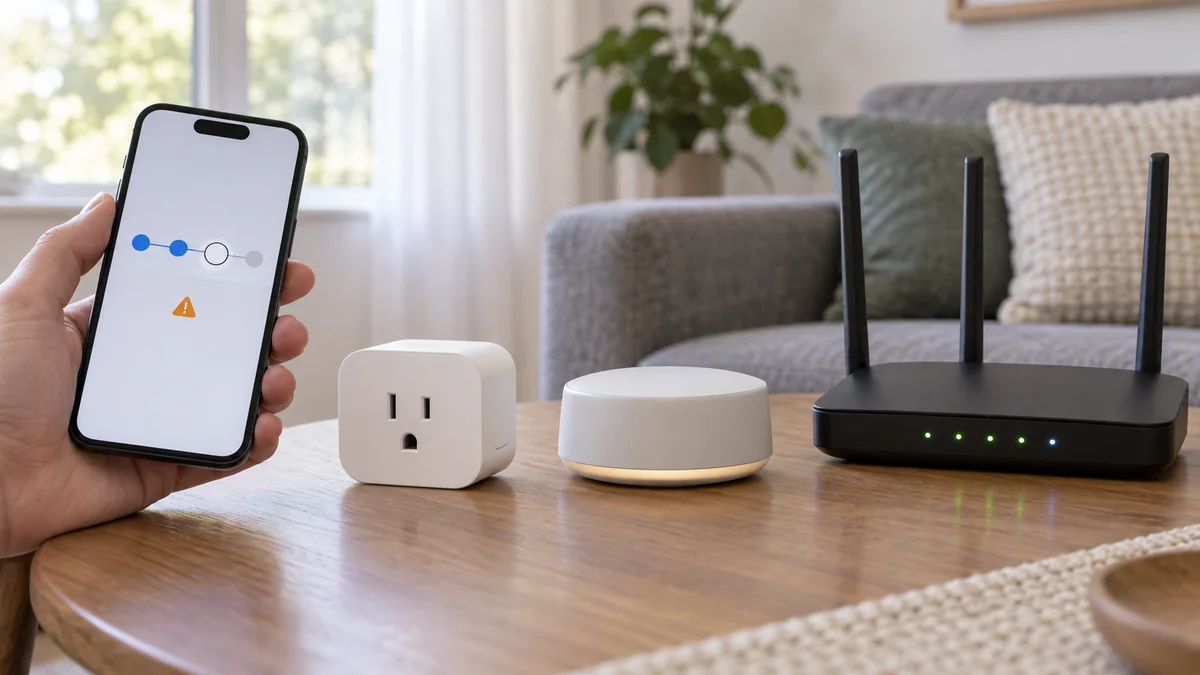
A Matter device not connecting isn’t a reason to factory-reset it yet.
Write down the last screen it reached: not found, connecting to the network, adding to the home, or added but offline.
Each message points to a different handoff, and resetting can erase the one part that already works.
If the phone never finds the accessory, check pairing mode and phone permissions.
If discovery works but setup stops later, identify Wi-Fi versus Thread, the required hub, and any previous platform pairing before blaming the device.
Matter device not connecting? Name the failed stage
A setup animation hides several separate jobs.
The last stage matters.
- Not discovered: the phone has not opened a setup session with the accessory. Confirm power, the maker’s pairing-mode signal, Bluetooth, and the app’s local-network permission.
- Discovered, then stuck on connecting: the accessory may be unable to join Wi-Fi or receive Thread credentials. This is where transport, hub capability, and IPv6 matter.
- Added before, but rejected now: the accessory may still belong to another Matter fabric. Use that platform’s sharing flow instead of treating the printed code as a fresh start.
- Added, then offline: commissioning finished. Stop scanning the code and troubleshoot the local network, home hub, or accessory firmware.
Google’s current Matter requirements separate a Matter-enabled hub from a Thread border router. A Wi-Fi Matter device needs the platform’s hub, while a Matter-over-Thread device also needs an active Thread border router that the platform can use.
Google also requires IPv6 on the home network for proper Matter communication.
That doesn’t mean changing random router switches; check the router manual or provider support page for the exact model first.
This failure map is narrower than a compatibility comparison. If you are still deciding which platform or protocol to buy, start with our smart-home troubleshooting hub instead.
Run one clean attempt in this order
Keep the accessory’s QR label and numeric setup code in view.
Photograph the label for your own records, but do not post it; the code is a credential for adding the device.
- Name the radio. Read the box or maker’s specifications for Matter over Wi-Fi, Ethernet, or Thread. The Matter logo alone doesn’t answer this.
- Update the four participants. Update the maker app, home-platform app, phone, and hub. Restart the phone and hub after pending updates finish.
- Check access. Enable Bluetooth and the app permissions requested by the platform. Put the phone and accessory near the hub and main router for this test.
- Verify the required hardware. Confirm that the chosen platform has a supported Matter hub. For a Thread accessory, confirm that at least one supported Thread border router is online.
- Open pairing mode again. Follow the device maker’s exact signal and timing, then retry once. Save the new error wording and the stage where it stops.
Google’s official setup page says the device must be powered and in pairing mode before the scan. It also lists a compatible hub, IPv6, Bluetooth Low Energy, and a Thread border router for Thread devices among the setup requirements.
“It just said ‘pairing failed’ immediately after scanning the QR Code.” — an owner report in r/HomeKit
The useful clue is “after scanning.” The camera read the code, but that doesn’t prove the accessory joined the home network or registered with the platform.
A successful scan followed by a timeout belongs in stages two or three.
Cleaning the camera or printing another copy of the same code won’t repair either handoff.
A saved Matter fabric changes the next move
Matter supports multiple platforms, but an accessory already paired elsewhere isn’t always added with the same path used for a new device. The first platform normally creates a temporary sharing code or hands the accessory to the second app.
Google calls this Multi-Admin and provides a linked-app or temporary pairing-code flow. Its support page warns that removing a device from a home also removes that home’s settings and automations.
Apple keeps a list of paired Matter accessories under Settings, General, Matter Accessories.
Apple’s current guide says those records sync through iCloud Keychain and can show the connected services for each accessory.
Don’t clear that list yet.
If the accessory appears there or still works in another app, open the working platform and look for “share,” “link apps,” or “turn on pairing mode.” Removing it from every service can break working controls without fixing the network condition that blocked the new platform.
If no platform controls it and the maker confirms it is still tied to an old home, follow that model’s removal and reset instructions. Do not borrow a reset sequence from a similar-looking plug or bulb.
Buy the missing hub or return the accessory
A purchase makes sense only when the failure map identifies a missing capability. Don’t buy a new router because one scan failed.
- Buy or enable a hub: the selected platform explicitly requires one and no supported hub is online.
- Buy a Thread border router: the product is Matter over Thread, your platform requires that path, and none of your existing devices provides it.
- Contact the maker: the accessory fails one documented clean setup while another Matter device works on the same platform and network.
- Return or replace it: current firmware, the correct hub, the correct transport, and one maker-approved reset still produce the same failure inside the return period.
If every Matter accessory fails at the same stage, the shared phone, platform hub, router, or IPv6 path is more likely than several bad products. If only one model fails, keep the support case focused on its firmware, setup signal, and certification details.
Place permanent hubs and routers where they can stay powered, ventilated, and connected. Our home installation guide covers the physical side without turning a pairing problem into a cable or mounting problem.
Do this now: copy the exact error and circle one stage—discovery, network join, platform registration, or post-setup control. When a Matter device not connecting reaches a known stage, the next move becomes one clean retry, a sharing code, a missing hub purchase, or a documented return.

Bolt & Bulb covers what goes wrong after the unboxing: devices that drop off Wi-Fi, dimmers that flicker with LED bulbs, locks that will not fit a rental door. The site draws on manufacturer documentation, platform support pages and release notes, and attributed owner reports in public forums.