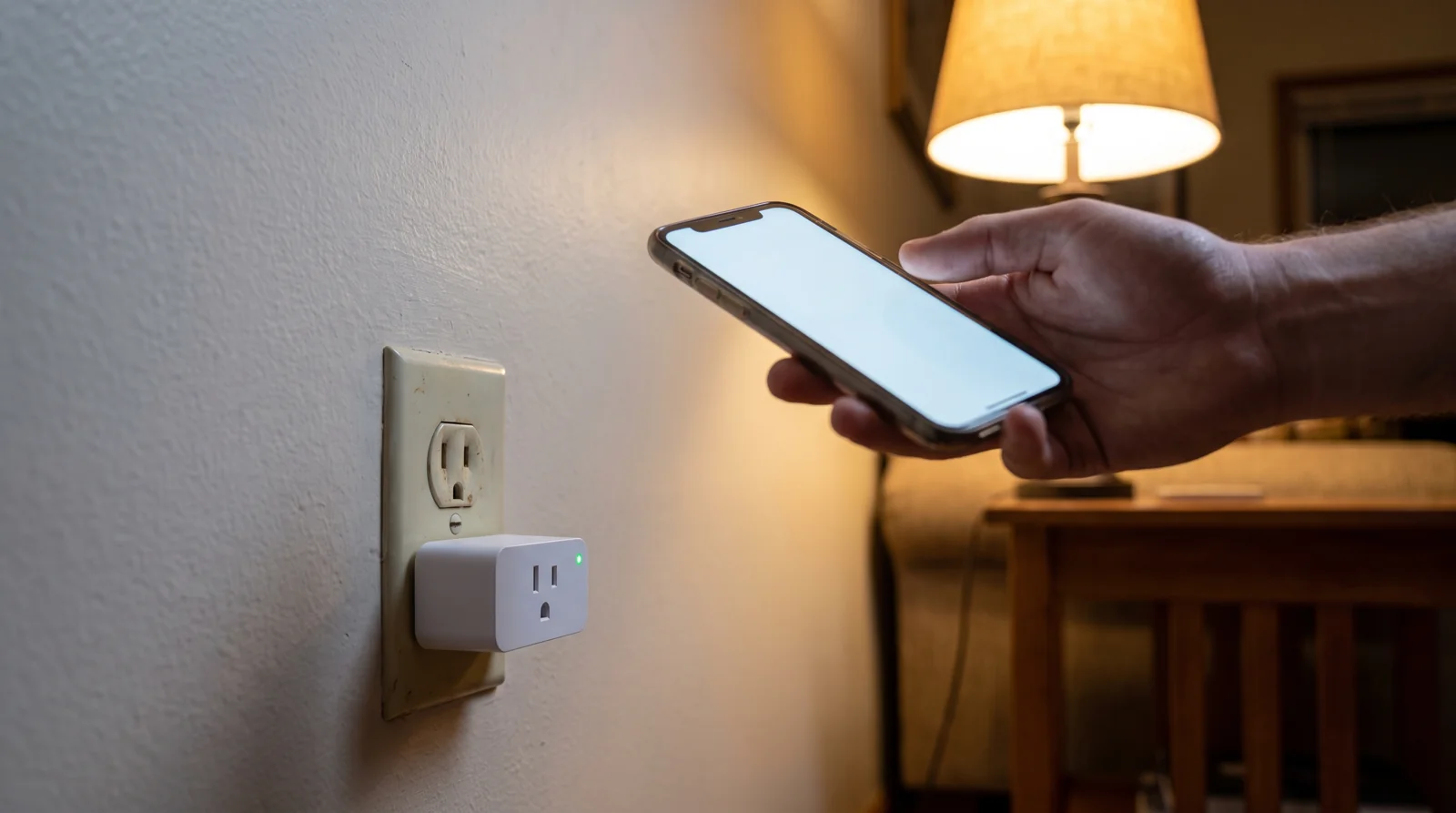
A smart plug not turning off means one of two things, and you can tell them apart in about ten seconds. Either the relay inside never opened, or it opened and something switched it straight back on. Stand next to the plug, tap off in the app, and listen.
A click means the relay moved. The fault is upstream — a schedule, a second app, or the plug’s own power-on setting. No click, or a click with the lamp still burning, means the contacts inside are stuck shut. That one isn’t a settings problem, and no amount of resetting will touch it.
Why a smart plug not turning off is two faults, not one
Inside almost every plug there’s a mechanical relay — an electromagnet that yanks two metal contacts apart. The app doesn’t switch your lamp. It asks the relay to.
So the state you see in the app and the state of the metal can disagree. What you hear tells you which side of that gap you’re on.
| What happens when you tap off | What it means |
|---|---|
| Click, power drops, then it’s back on minutes or hours later | Something re-enabled it. Schedule, away mode, or another app. |
| Click, but the power never drops | The contacts are welded shut. Hardware. |
| No click, app spins or snaps back to “on” | The plug is offline. You’re editing a cloud copy of its state. |
That third row catches people out constantly. If the plug has dropped off the network, the app will happily show you a switch you can flip, because it’s showing you the last thing the server heard. Nothing reached the relay at all.
It clicked, then came back on — find what re-enabled it
Work through these in order. Four of the five are free and take a minute each.
- Every schedule, timer and countdown in the app. Not just the ones you remember making. Auto-off timers and “runtime” limits live on a different screen from schedules in most apps, and a countdown you set once in 2024 is still there.
- Away mode. It makes an empty house look occupied by turning things on at intervals you didn’t choose. Enabled it for one trip? It’s still on.
- The default state after a power cut. TP-Link added exactly this setting to its Tapo plugs — Default State on the Tapo plugs lets you pick on, off, or last state. Set to “on”, the plug wakes up live after every brownout, and a brownout you never noticed looks identical to a plug that refuses to stay off.
- The other controller. An Alexa routine, a Google Home routine, a HomeKit automation and a Home Assistant script can all reach the same plug, and none of them tells the manufacturer’s app what it did. If you’ve ever said “turn on the fan” to a speaker, there may be a routine you don’t remember approving.
- The firmware. Some plugs come back on after an update or a reconnect, by design. Check the app’s history log: on events clustered at the same hour mean a schedule, on events clustered around reconnects mean the plug.
The history log is the fastest of these, and almost nobody opens it. It timestamps who turned what on.
If the plug also keeps vanishing from the app entirely, that’s a different fault with the same symptom, and it usually comes down to your router handing out a new address — the same thing that knocks smart speakers off wifi overnight.
It clicked and the power stayed on — that’s a welded relay
This is the failure people refuse to believe, because the click sounds like success. The electromagnet released. The contacts didn’t.
One Home Assistant user described it exactly: “relay stays in on state (sticked) and can’t be turned off. Kicking it gently a few times resolves the problem for a while but eventually it comes back.” A TP-Link owner reported the same thing on an HS100 — the LED went dark, the relay clicked, and “the socket continues to supply power”. Another commenter on that thread put the mechanism in seven words: if the contacts “don’t open when the solenoid releases they’re fused together.”
Note what both of them tried first. Tapping it works — briefly. That’s the tell, and it’s also the trap, because a plug you can hit back into life is a plug you’ll leave in the wall.
Here’s my flat opinion: bin it. A welded relay doesn’t heal, the failure runs in one direction only, and the next time it sticks it may be under a load you’re not in the room for. Don’t open the case to look, either — that’s mains voltage on a board with no insulation to speak of. If it’s under warranty, the serial number and a receipt are usually enough for a replacement.
Why an amplifier kills a plug that a lamp never will
The number on the box is 15 amps, or 13, or 10. That number describes current flowing steadily. It says nothing about the first few milliseconds.
When contacts close on a load with a transformer or a motor in it, the surge is enormous and brief, and it arcs across the gap before the metal actually touches. On the way back out, the collapsing magnetic field pushes back. As one electrically-minded poster on that Home Assistant thread put it, “back-EMF even from a small inductor can generate a spark so you can imagine the impact on contacts… inrush currents can be huge.” Each arc melts a little metal. Eventually two molten spots meet and cool as one.
The loads that did it in that thread were a 70 W amplifier and a 60 W television. Sixty watts. A 60 W lamp will run on the same plug for a decade, because a filament or an LED driver has nothing in it that fights back. It’s the shape of the load, not the size.
Which gives you a rule you can apply at the hardware store. Motors, compressors, amplifiers, laser printers, anything with a fridge in the name — give those a plug rated well above what they draw, or don’t put them on a smart plug at all. TP-Link’s own support line on this is worth repeating: plug the appliance in directly, “without a power strip and other devices together.” A strip behind a smart plug stacks every device’s inrush into one moment.
Curiously, the reverse problem exists too. A load can keep glowing on a switch that’s genuinely open, which is what’s happening when an LED strip flickers after you’ve switched it off. Same symptom, opposite cause.
Where to stop
Two lines are worth drawing.
If the stuck plug is feeding a heater, an electric blanket, a dehumidifier or anything that gets hot on its own, unplug it from the wall now and sort out the diagnosis afterwards. A device that can’t be switched off is only a nuisance until it’s attached to something that needed switching off.
And if you’ve been through every schedule, every routine, every linked app, and it still comes back on with a clean click each time, stop looking for the setting. There isn’t one. At that point you’re not troubleshooting software, you’re waiting for hardware to fail properly.
Do this first: stand next to the plug and tap off. That one sound decides everything — a click sends you into the app’s history log, and no click, or power that stays on through the click, sends the plug to the bin.
More in this section: Smart home troubleshooting starts here.

Bolt & Bulb covers what goes wrong after the unboxing: devices that drop off Wi-Fi, dimmers that flicker with LED bulbs, locks that will not fit a rental door. The site draws on manufacturer documentation, platform support pages and release notes, and attributed owner reports in public forums.